You Have Two Wi-Fi Networks - Which One Should Your QR Code Use?
2.4 GHz, 5 GHz, guest Wi-Fi, or your main network? Learn which Wi-Fi network makes the most sense for a QR code and avoid confusing guests with the wrong connection.
Modern Wi-Fi setups have a funny way of becoming more complicated than they need to be. You install a new router, open the network settings, and suddenly there are several names staring back at you: one network for 2.4 GHz, another for 5 GHz, maybe a guest network, and occasionally a few old names left over from a previous setup. Then someone says, “Can you give me the Wi-Fi QR code?” and you realize there isn't really one Wi-Fi anymore.
- Start with the person who is going to scan it
- 2.4 GHz and 5 GHz aren't just two names for the same thing
- Sometimes “Guest Wi-Fi” is the obvious answer
- Don't make one QR code solve every problem
- What if your phone can connect but your guest's phone can't?
- The password isn't the only information that matters
- The easiest mistake to make is creating the QR too early
- A good QR setup should be boring
So which network should the QR code point to?
It sounds like a small detail, but choosing the wrong one can create a surprisingly bad experience. A guest may connect successfully but get weaker performance than expected. A smart device may refuse to connect to a network it doesn't support. Or, worse, you might accidentally make the credentials for your private network available when you intended to share guest access.
The QR code isn't the difficult part. Choosing what goes inside it is.
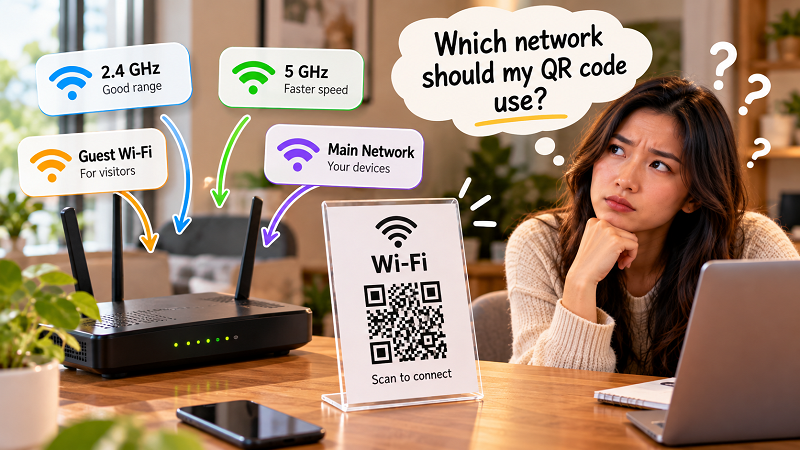
Start with the person who is going to scan it
Before worrying about frequencies, security settings, or router terminology, ask a simpler question: who is this QR code for?
If you're making one for yourself, you might want quick access to your preferred home network. If it's sitting on a table for visitors, the situation is different. If it's being displayed in a café, office, rental property, or event space, the QR should almost certainly point toward the network intended for guests.
That sounds obvious, but it's easy to create a QR code using whichever network happens to be visible in your router settings first.
Convenience for the person creating the code isn't necessarily convenience for the person using it.
A useful Wi-Fi QR setup begins with the intended user, not the generator.
2.4 GHz and 5 GHz aren't just two names for the same thing
If your router broadcasts separate networks for 2.4 GHz and 5 GHz, you may wonder which one belongs in the QR code.
There isn't a universal winner.
The 5 GHz band can offer faster performance and is often a good choice when the device is relatively close to the router. The 2.4 GHz band generally travels farther and can behave better through walls, which is one reason it remains useful for devices farther away from the router and for some smart-home equipment.
That means the best choice depends on the environment.
Imagine a small apartment where guests are sitting in the same room as the router. A 5 GHz network may make perfect sense. Now imagine a larger house where visitors spend most of their time several rooms away. The network with better range may be the more practical option.
You don't need to turn this into a networking exam. Just think about where people will actually use the connection.
Sometimes “Guest Wi-Fi” is the obvious answer
If your router offers a guest network, that's often the cleanest option for visitors.
The reason isn't simply convenience. A guest network can separate visitor access from the network used by your own devices, depending on how your router implements isolation and security features.
That distinction becomes important when the QR code is going to be printed and left somewhere accessible.
A Wi-Fi QR code displayed in your living room, café, office reception area, or rental property isn't really private in the same way as a password written inside a notebook. Anyone who can access the code may be able to attempt to join the network.
So ask yourself what you're comfortable sharing.
If the answer is “internet access, but not access to everything connected to my home network,” a properly configured guest network is worth considering before you create the QR.
Don't make one QR code solve every problem
There's also no rule saying you must have exactly one Wi-Fi QR code.
In some situations, having separate codes is actually simpler.
A home office could have one QR for the guest network and another for a private network used by the household. A small business might provide a customer Wi-Fi QR while keeping staff connectivity separate. A larger property could use different guest networks for different areas.
The trick is avoiding unnecessary choice.
If visitors see a sign that says:
Wi-Fi 2.4 GHz
Wi-Fi 5 GHz
Guest Wi-Fi
Guest Wi-Fi Backup
Staff Wi-Fi
…you haven't simplified anything. You've just moved the networking settings from the router to the customer's eyeballs.
Most people don't want to choose a frequency before drinking their coffee.
What if your phone can connect but your guest's phone can't?
This is where testing becomes more important than assumptions.
A QR code can contain the correct network information and still produce a poor real-world experience if the target device handles that network differently. Older devices may have different Wi-Fi capabilities. Some smart devices only support certain bands. Different phones may also present the connection process differently.
That's why the easiest test is often brutally simple: use another device.
Create the QR, scan it from a different phone, and see what happens. Don't stop at “the camera recognized the QR.” Confirm that the expected network appears and that the device can actually connect.
If you're preparing a QR for customers or guests, this is worth doing before printing a large batch.
The password isn't the only information that matters
People often think of a Wi-Fi QR code as a clever way to hide a password. That's only part of the story.
The encoded information also needs to identify the network correctly and describe the relevant security configuration. If those details don't match the router, scanning the code won't magically fix the mismatch.
This is why searching for a wifi qr to password solution isn't always the right way to think about the problem. Sometimes you aren't trying to recover a password at all. You're trying to make sure the QR contains the correct combination of network information in the first place.
A successful scan doesn't automatically mean you've configured the right network.
The easiest mistake to make is creating the QR too early
Here's a situation that happens more often than you'd expect: someone creates a beautiful Wi-Fi sign before finishing the network setup.
Then the router settings change.
Maybe the guest network gets renamed. Maybe the password is updated. Maybe the business switches to a different router. Maybe the separate 2.4 GHz and 5 GHz networks are combined under one name.
The printed QR doesn't know any of this.
It's simply carrying the information that was encoded when it was created.
That's why the best time to create your final QR is after the network setup is stable, not while you're still experimenting with router settings.
If the network changes later, treat the QR as something that needs to be reviewed rather than assuming it will continue working forever.
A good QR setup should be boring
There's a temptation to overthink this.
Which network should I choose? Which band is fastest? Should the QR be huge? Should I make different versions? Should I redesign the entire Wi-Fi setup?
Usually, the answer is much simpler.
Choose the network intended for the person scanning it. Use a guest network when appropriate. Make sure the security settings match. Create the QR from the current information. Test it with another device. Then put it somewhere people can actually use it.
That's it.
The best Wi-Fi QR experience doesn't make visitors think about routers, frequency bands, encryption, or network architecture. They see the sign, scan it, connect, and move on.
And that's probably the real goal.
Technology is doing its job when the complicated part stays behind the scenes. Your guests don't need to know whether they're on 2.4 GHz or 5 GHz. They just need a reliable connection. Your customers don't need a networking tutorial before opening their laptop. They just need Wi-Fi that works.
So if you're looking at three or four network names right now and wondering which one deserves the QR code, don't start by asking which one sounds the most technical.
Ask a much better question:
“Who is this QR for, and what kind of access do I actually want them to have?”
Once you answer that, the rest gets a lot easier.