Get WiFi QR Code: How to Find or Create One Fast
Need to get a WiFi QR code? Learn where to find one on your phone, what to do when it isn't available, and how to create a new QR code from your WiFi details.
Someone asks for your Wi-Fi and suddenly a simple request turns into a mini scavenger hunt. What is the network name again? Where did you save the password? Does the router have a QR code? And if your phone is already connected, shouldn't there be some magical button that just says “Share Wi-Fi”?
- Start With the Easiest Question: Are You Already Connected?
- What If Your Phone Doesn't Show a QR Code?
- Don't Confuse an Old QR Code With the Current Network
- The Three Things You Actually Need
- Give It a Quick Test Before Sharing It
- Where a Wi-Fi QR Code Becomes Surprisingly Useful
- No QR Code? That's Not Really a Problem
The good news: you usually don't need to dig through old messages, crawl under your desk to photograph the router sticker, or type a long password character by character. The trick is figuring out what kind of Wi-Fi QR code you're looking for in the first place.
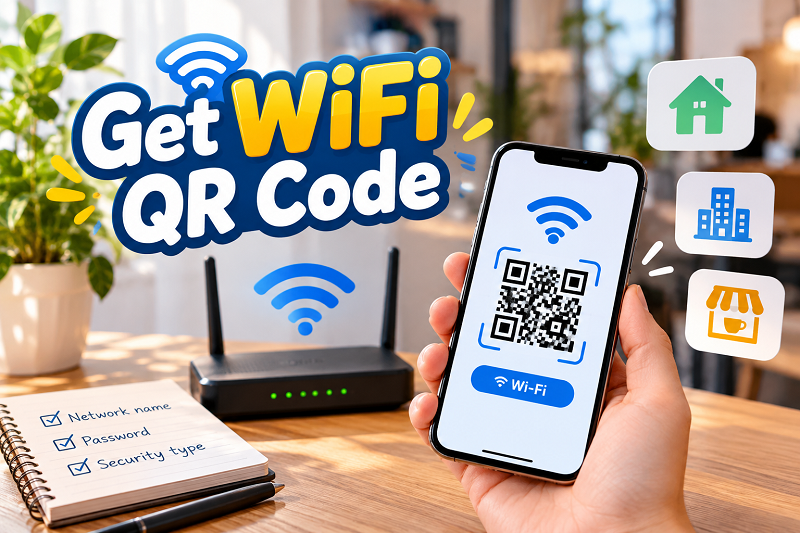
Start With the Easiest Question: Are You Already Connected?
If your phone or tablet is already connected to the Wi-Fi network, you're in a much better position than you might think. Many modern devices include a Wi-Fi sharing option that can display network information as a QR code. The exact location varies between devices and operating system versions, but the feature is generally found somewhere around the current Wi-Fi network settings.
This is particularly handy when a friend comes over and wants to connect. Instead of reading out something like “HomeNetwork_5G underscore 7F, password capital M, lowercase...” you can simply show the QR code and let their phone handle the rest.
There is one catch: not every device offers the same sharing feature. Some phones show a QR code immediately, while others may only display network details. Older devices may not offer QR sharing at all. So if you're looking through your Wi-Fi settings and can't find a QR option, don't assume you're doing something wrong.
Sometimes the feature simply isn't there.
What If Your Phone Doesn't Show a QR Code?
This is where things get interesting. You may already know the Wi-Fi name and password, but your device doesn't give you a convenient way to turn them into a QR code.
You don't actually need the original router QR code to share the network.
A Wi-Fi QR code is essentially a compact way of storing the information a device needs to join a wireless network. If you know the network name, password and security type, you can create a new code without touching the router.
For example, imagine you've connected to your home Wi-Fi for years. The password is saved on your laptop, your phone connects automatically, and everything works perfectly. Then a guest arrives and wants to connect. There is no QR button on your device, and the router is sitting behind a cabinet where nobody wants to crawl.
Instead of treating that as a dead end, you can use a get wifi qr code tool to generate a fresh code from the Wi-Fi details you already have.
The resulting QR code doesn't need to be the exact QR code printed on your router. As long as the encoded network information is correct, a compatible device can scan it and use those details to connect.
Don't Confuse an Old QR Code With the Current Network
Here's another situation that catches people out: you find a Wi-Fi QR code, scan it, and nothing happens.
Before blaming the QR code, check whether the network information has changed.
Maybe the router was replaced. Maybe the Wi-Fi password was updated after a security change. Perhaps the network name was changed because someone finally got tired of seeing “TP-Link_48291” every time they opened the Wi-Fi menu.
A QR code doesn't magically update itself when your wireless settings change. It contains the information that was encoded when the code was created.
That means an old QR code can look perfectly normal while pointing to outdated information.
If the password changed last month, for example, a QR code created six months ago may still contain the old password. Scanning it won't somehow retrieve the new one. In that situation, creating a new QR code from the current Wi-Fi details is usually the straightforward solution.
The Three Things You Actually Need
If you're creating a new Wi-Fi QR code, don't overcomplicate it. Most of the time, you only need three pieces of information.
Network name (SSID): This is the name people see when they open their Wi-Fi settings.
Password: The current password used to connect to the network.
Security type: Depending on your setup, this may be WPA/WPA2/WPA3 or another supported option. If a tool asks you to select the security type, choose the one used by your network rather than guessing.
Once those details are correct, the QR code itself is the easy part.
The most important thing is accuracy. A beautifully designed QR code with the wrong SSID is still useless. The same goes for a missing character in the password. One tiny mistake can turn a two-second scan into a frustrating “Why isn't this working?” conversation.
Give It a Quick Test Before Sharing It
This is the step people skip because it takes about ten seconds.
Test the QR code before printing it, putting it on the wall, adding it to a restaurant table, or sending it to twenty guests.
Use another phone to scan the code. If possible, make sure that phone isn't already connected to the same Wi-Fi network. Then check whether it recognizes the network information and connects successfully.
Testing matters even more when the QR code is going to be used repeatedly. A code sitting beside a coffee shop counter or inside a guest room may be scanned hundreds of times. Finding out on day one that the password was entered incorrectly is much better than discovering the problem after a queue of people is waiting for Wi-Fi.
Where a Wi-Fi QR Code Becomes Surprisingly Useful
Once you have a working QR code, you don't have to keep it hidden on your phone.
At home, it can sit somewhere guests can easily see without you having to repeat the password every time someone visits. In an office, it can make visitor access less awkward. A café, salon, guesthouse or small business can place one near a reception desk or seating area.
Even better, the QR code can be printed. That turns Wi-Fi access into a simple scan rather than a conversation involving passwords, capitalization and the occasional “Was that a zero or the letter O?”
Just remember that convenience and security should go together. Anyone who can scan a Wi-Fi QR code may be able to obtain the information needed to join that network. A guest network is often a smarter choice for businesses or homes where you don't want visitors accessing the same network as personal devices.
No QR Code? That's Not Really a Problem
The phrase “get a WiFi QR code” makes it sound like there is supposed to be one specific QR code waiting somewhere on your phone, router or modem.
There isn't always.
Sometimes the code is built into the device's Wi-Fi sharing feature. Sometimes it's printed on networking equipment. And sometimes there simply isn't one because nobody created it.
That's perfectly fine. What matters is having the correct Wi-Fi details. Once you have the network name, password and security settings, you can create a new QR code and move on.
So the next time someone asks for your Wi-Fi QR code, don't immediately start searching through drawers for the router manual. Check your connected device first. If the sharing option isn't available, use the information you already have to create a fresh code. A few seconds of setup can save you from typing the same Wi-Fi password for the hundredth time.