WiFi With QR Code: 7 Smart Places to Put One
Using WiFi with a QR code? Discover 7 smart places to display it so guests can connect faster without asking for the password.
You’ve got a Wi-Fi QR code. Great. You print it, stick it somewhere, and wait for the magic to happen.
- 1. Put It Where Guests Sit Down
- 2. Give Your Reception Desk a Second Job
- 3. Let the Café Table Do the Talking
- 4. Use It at Events Before Everyone Starts Asking
- 5. Put the QR Near the Place People Actually Need Wi-Fi
- 6. Don't Hide the QR Behind a Wall of Instructions
- 7. Always Give People a Backup Option
- The QR Code Doesn't Need to Be Huge. It Needs to Be Usable.
- Think About the Moment, Not Just the Location
- One QR Code, Fewer Repeated Questions
Except… someone still walks up and asks, “What’s the Wi-Fi password?”
That little moment tells you something important: creating a QR code is only half the job. Where you put it matters just as much as what’s inside it. A QR code hidden behind a monitor, buried in a menu, or placed three meters above someone’s head might technically work, but that doesn’t mean anyone is going to use it.
The trick is to put your Wi-Fi QR code exactly where people naturally need internet access. Here are seven practical places that make sense in the real world.
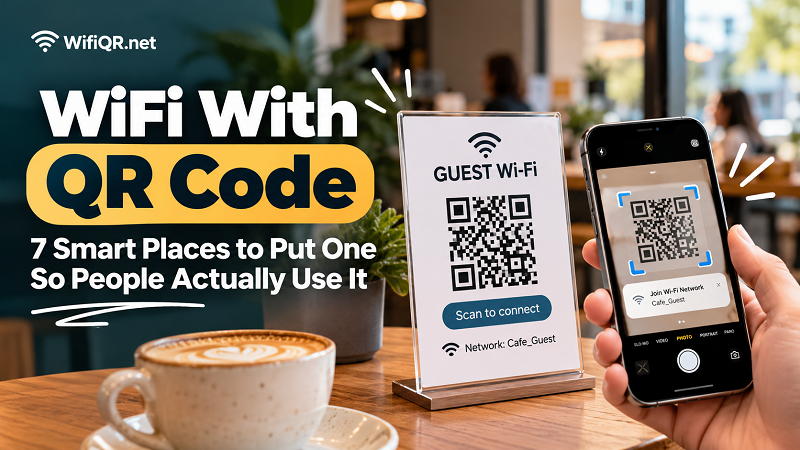
1. Put It Where Guests Sit Down
This one sounds almost too obvious, yet it is probably the most effective.
Think about what happens when someone enters a café, waiting room, Airbnb, office, salon, or guest area. They sit down. They pull out their phone. Then, sooner or later, they need Wi-Fi.
That makes the table, counter, or seating area a natural location for your QR code.
A small table card can work beautifully. So can a discreet sticker, tabletop sign, or acrylic stand. You don't need a giant “FREE WIFI!!!” poster screaming across the room. The goal is simple: make the option visible at the exact moment someone is likely to need it.
A short message such as “Scan for Wi-Fi” is often enough.
2. Give Your Reception Desk a Second Job
Reception desks are another natural hotspot for Wi-Fi sharing.
Hotels, guesthouses, coworking spaces, clinics, salons, studios, and offices all have one thing in common: people often stop at reception before they settle in.
Instead of making staff repeat the network name and password throughout the day, place a QR code somewhere visible on the counter. Guests can scan it while checking in or while waiting.
This is especially useful when the password contains a combination of random letters, numbers, and symbols. Nobody wants to hear a receptionist say, “It's capital B, lowercase x, number seven, underscore…” and then have to ask for it again.
A QR code turns that entire exchange into a two-second action.
3. Let the Café Table Do the Talking
Cafés are almost tailor-made for Wi-Fi QR codes.
People come in, order something, sit down, open a laptop, and start working, studying, browsing, or doom-scrolling. Internet access isn't an unusual request here; it's part of the experience.
Instead of putting the QR code somewhere near the entrance where people might never notice it, put it directly on the table or menu.
But there's a small design detail worth remembering: don't make the QR compete with the food.
A clean little card with your Wi-Fi name and a QR code can feel much more intentional than a giant printed sheet. If your tables already have menus or promotional cards, the Wi-Fi information can become part of that visual system.
The QR doesn't need to be the star of the show. It just needs to be easy to find.
4. Use It at Events Before Everyone Starts Asking
Temporary events are another situation where Wi-Fi credentials can become surprisingly annoying.
Imagine a conference with 100 attendees. Or a workshop where everyone needs to access a presentation. Or a wedding venue where guests want to upload photos. Or a pop-up store where visitors need internet access to register, browse a catalog, or make a purchase.
Now imagine giving the password verbally to every person who asks.
Not ideal.
For events, a QR code can be displayed at several obvious touchpoints: registration desks, entrance signs, tables, presentation areas, or welcome boards.
There's also a nice psychological advantage here. When attendees see a clear “Guest Wi-Fi” sign with a QR code, they immediately understand what it is for. They don't have to interrupt someone working at the event just to get online.
5. Put the QR Near the Place People Actually Need Wi-Fi
Here's a useful rule: follow the user, not the router.
The router may be sitting in a back office, utility room, or technical closet. That doesn't mean your QR code belongs there.
Your guests probably don't care where the network equipment lives. They care about where they are sitting.
If the Wi-Fi is intended for customers in a waiting area, put the QR there. If it's for guests in a meeting room, put it in the meeting room. If it's for visitors in a guest bedroom, put it in the bedroom.
This sounds simple, but it's an easy mistake to make when designing a physical setup. The person installing the network thinks about the router. The person using the network thinks about the chair.
The chair wins.
6. Don't Hide the QR Behind a Wall of Instructions
A Wi-Fi QR code shouldn't require a user manual.
You don't need a paragraph explaining how to open the camera, point it at the code, wait for a notification, tap the notification, confirm the network, and finally connect.
Most people already understand what a QR code looks like.
Keep the supporting text short:
Guest Wi-Fi
Scan to connect
That's enough in many situations.
If additional information is genuinely useful, show the network name underneath. This gives users a visual confirmation that they're connecting to the network they actually want.
The less mental effort required, the better the experience.
7. Always Give People a Backup Option
QR codes are convenient, but convenience shouldn't become a dead end.
Someone might have an older phone. The camera may not recognize the code immediately. The printed QR might be damaged. The lighting might be terrible. Or the user may simply prefer typing the password manually.
That's why a practical Wi-Fi sign can include both options.
For example:
Guest Wi-Fi
Scan the QR code to connect
Network: Cafe_Guest
Password: ********
You don't necessarily need to make the password huge and obvious. The point is simply to provide an alternative for situations where scanning isn't convenient.
Good design doesn't force everyone through the same door. It gives people the easiest door for their situation.
The QR Code Doesn't Need to Be Huge. It Needs to Be Usable.
There's a common temptation to make QR codes enormous because “bigger must be better.”
Not necessarily.
A QR code needs enough physical size and contrast to be scanned reliably from the distance at which people will actually use it. A tiny code on a glossy menu might be more frustrating than a moderately sized code on a simple matte card.
Before printing a hundred copies, test the actual version you'll use.
Print it. Put it on the table. Stand where your customers normally stand or sit. Try scanning it with different phones.
If you have to lean forward, squint, move the phone around, or explain where the QR is located, you've already found the problem.
Think About the Moment, Not Just the Location
The best place for a Wi-Fi QR code isn't necessarily the most visible place in the building.
It's the place where the need for Wi-Fi naturally appears.
Someone sits down → they need internet.
Someone checks into a hotel → they need internet.
Someone arrives at an event → they need internet.
Someone opens a laptop in a coworking space → they need internet.
That's your opportunity.
If you're setting up wifi with qr code, think beyond the code itself. The real goal isn't to display a clever square pattern on a wall. It's to remove a tiny but surprisingly annoying obstacle between a person and the internet.
One QR Code, Fewer Repeated Questions
A well-placed Wi-Fi QR code can quietly solve one of those small problems that keeps happening over and over again.
Staff don't have to repeat the password. Guests don't have to type complicated credentials. Customers don't have to interrupt someone for help. And you don't need another giant sign cluttering the room.
The best QR code is often the one people barely notice until the exact second they need it.
Put it where the question happens, and you may never have to answer the question again.