QR Code to Wi-Fi Password: What Happens When You Scan It?
Wonder what happens to a Wi-Fi password inside a QR code? Learn how Wi-Fi QR codes store connection details, recover password information, troubleshoot scans, and stay secure.
You scan a Wi-Fi QR code, your phone recognizes the network, and suddenly you're connected.
- A Wi-Fi QR Code Isn't a Magic Login Button
- So, Is the Wi-Fi Password Actually Inside the QR?
- Why Does My Phone Connect Without Showing Me the Password?
- What If You Actually Need the Password?
- When a QR Code Scans but Wi-Fi Still Won't Connect
- The Network Name Is Wrong
- The Password Has Changed
- The Security Type Doesn't Match
- The QR Is Hard to Scan
- The Router Is the Real Problem
- Can You Turn a QR Code Back Into a Wi-Fi Password?
- A Wi-Fi QR Can Be Convenient — and Sensitive
- Guest Wi-Fi Is Your Friend
- What Makes a Wi-Fi QR a Good Sharing Tool?
- What If You Don't Know the Wi-Fi Password Anymore?
- Static Doesn't Mean Unchangeable
- A Quick Troubleshooting Routine
- The QR Is Small. The Information Isn't.
- Final Thought
No typing. No asking for the password. No trying to figure out whether that character was a lowercase “l” or the number “1”.
But then comes the obvious question:
Where did the Wi-Fi password go?
Did the QR code contain it? Can you see it again after scanning? What happens if the QR won't connect? And is it actually safe to put a Wi-Fi QR code somewhere other people can scan?
There is more going on inside that little square than meets the eye.
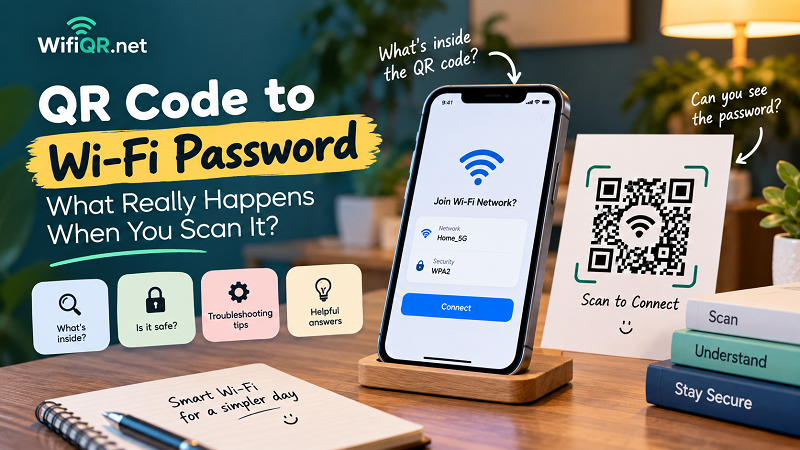
A Wi-Fi QR Code Isn't a Magic Login Button
The first thing to understand is that a Wi-Fi QR code can contain the information needed to configure a wireless connection.
For a typical Wi-Fi QR, that can include the network name, security type and password.
So when a compatible phone scans the code, it doesn't necessarily need to ask a website for the password. The relevant connection data can already be encoded in the QR itself.
That's why a static Wi-Fi QR can work without requiring an account, dashboard or online database to retrieve the network credentials.
The QR is essentially carrying the instructions the device needs.
So, Is the Wi-Fi Password Actually Inside the QR?
In a properly generated Wi-Fi QR, the answer can be yes.
The QR isn't simply saying:
“Connect to this network.”
It can contain structured Wi-Fi connection information, including the password.
That's an important distinction because it changes how you should think about sharing the QR.
A QR code containing Wi-Fi credentials should be treated more like a convenient way of sharing the credentials than as a harmless decorative image.
If someone can access the QR and their device can interpret its contents, they may be able to obtain the information needed to connect.
Convenient? Absolutely.
Something you should stick publicly outside your front door without thinking about it? Probably not.
Why Does My Phone Connect Without Showing Me the Password?
This is where things can feel a little strange.
You scan the QR, your phone recognizes the network and offers to connect. Yet you don't necessarily see the password displayed in plain text.
That's normal.
The phone's operating system controls how the scanned information is presented. It can use the credentials to help configure the connection without turning the process into a big password-reveal screen.
Think of it like using a boarding pass.
You don't need to manually read every piece of information encoded in the barcode before you're allowed through the gate. The system interprets the data for you.
A Wi-Fi QR works in a similar spirit: the useful information can be processed without necessarily being presented to you as a readable password.
What If You Actually Need the Password?
This is where expectations can get tricky.
A Wi-Fi QR can contain the password, but scanning it doesn't guarantee that your phone will give you a convenient “show password” option.
Different devices and operating systems handle Wi-Fi sharing and QR scanning differently.
So if your goal is specifically to recover a forgotten Wi-Fi password, don't assume that scanning the QR will always reveal the password as plain text.
The QR may contain the information, while the phone decides how much of that information to expose through its interface.
That's an important difference.
When a QR Code Scans but Wi-Fi Still Won't Connect
This is probably the most annoying scenario.
The camera recognizes the QR.
The Wi-Fi network appears.
You tap connect.
And... nothing.
Before blaming the QR code, work through the likely causes.
The Network Name Is Wrong
Even a small difference in the SSID can cause problems. Spaces, capitalization and special characters matter.
Make sure the QR was created using the exact network name.
The Password Has Changed
This one is painfully common.
If the router password was changed after the QR was created, the old QR still contains the old information.
The QR doesn't magically update itself.
If the credentials change, an existing static QR containing those credentials may need to be replaced.
The Security Type Doesn't Match
Wi-Fi QR information includes security details, not just the network name and password.
If those details don't correspond to the actual network configuration, the device may fail to establish the connection.
The QR Is Hard to Scan
Sometimes the information is perfectly correct and the problem is simply the image.
A blurry print, poor contrast, extreme glare or a damaged QR can interfere with scanning.
Try displaying the original QR on a bright screen and scan it again. If that works, the issue may be the printed or displayed version rather than the Wi-Fi information itself.
The Router Is the Real Problem
Don't forget the obvious possibility.
If other devices also can't connect to the network, the QR code may have nothing to do with the problem.
Check the router, internet connection and network availability before rebuilding the QR.
Can You Turn a QR Code Back Into a Wi-Fi Password?
This is where the phrase qr code to wifi password can mean several different things.
If you have a Wi-Fi QR code, the encoded data may contain the network name, security information and password. A QR reader capable of decoding the underlying content may therefore reveal the structured information stored inside it.
But there's a practical difference between decoding a QR and getting a password displayed by your phone.
The first is about reading the QR's data.
The second depends on the device, operating system and software you're using.
So if you've found an old Wi-Fi QR and want to know what network information it contains, decoding the QR is one approach. If you're expecting your phone's camera to automatically display every credential as plain text, the experience may be different.
A Wi-Fi QR Can Be Convenient — and Sensitive
Here's the part worth taking seriously.
A Wi-Fi QR isn't inherently dangerous. But it can contain information that you don't want random people to have.
Imagine printing the QR for your primary home network and putting it somewhere visible outside your house.
Anyone who can scan it may potentially gain the information needed to join that network.
The same principle applies to an office.
If the QR contains credentials for the internal company network, putting it in a public reception area could create an unnecessary access risk.
The better approach is to think about which network you're sharing, not just how you're sharing it.
Guest Wi-Fi Is Your Friend
For homes, cafés, offices and other places where visitors regularly need internet access, a guest network can make the whole setup cleaner.
You can create a Wi-Fi QR for the guest network and keep your primary network credentials private.
That gives visitors the convenience of scanning a QR while keeping personal devices and other network resources on a separate connection.
It also makes future changes easier to manage.
If the guest network password changes, you only need to update the guest-facing QR rather than redesigning your entire Wi-Fi sharing setup.
What Makes a Wi-Fi QR a Good Sharing Tool?
A useful Wi-Fi QR should do three things well:
It should contain accurate information.
A QR is only as useful as the credentials encoded inside it.
It should be easy to scan.
Clear contrast, adequate size and sensible placement matter more than fancy visual effects.
It should be shared with the right people.
A QR containing network credentials isn't something you should automatically treat as public information.
Those three principles cover most of the practical side of Wi-Fi QR sharing.
What If You Don't Know the Wi-Fi Password Anymore?
This situation comes up more often than you'd think.
Someone created a QR months ago, the original password isn't written anywhere obvious, and now they need to configure another device.
If you still have access to the QR, decoding its contents may help identify the network information encoded in it. Depending on the device and tools available, you may be able to inspect the underlying Wi-Fi configuration rather than manually guessing the password.
But if the QR was created with incorrect information in the first place, decoding it won't magically recover the correct credentials.
It can only reveal what was actually encoded.
That's an important distinction when troubleshooting old QR codes.
Static Doesn't Mean Unchangeable
A static Wi-Fi QR is convenient because the information is stored directly in the code.
But that also means the QR doesn't automatically know when your router settings change.
Change the Wi-Fi password and the old QR may become outdated.
Change the network name and the same thing happens.
Move to a different security configuration and the old information may no longer work.
In other words, static QR codes are wonderfully simple, but they faithfully preserve the information they were created with.
That is both their strength and their limitation.
A Quick Troubleshooting Routine
If someone tells you, “The Wi-Fi QR doesn't work,” don't immediately create another one.
Run through this sequence:
1. Scan the QR again.
Make sure the phone actually recognizes the code.
2. Check the network name.
Does it match the Wi-Fi network currently being broadcast?
3. Check whether the password has changed.
Old credentials are one of the easiest explanations.
4. Try another device.
This helps separate a QR problem from a device-specific issue.
5. Test the Wi-Fi manually.
If manual connection also fails, look at the router or network rather than the QR.
6. Check the physical QR.
If the digital version works but the printed version doesn't, improve the print quality, size or contrast.
This simple process can save you from rebuilding a perfectly good QR code.
The QR Is Small. The Information Isn't.
That's perhaps the easiest way to think about Wi-Fi QR codes.
Visually, it's just a square.
Functionally, it can carry enough structured information to remove the need for someone to manually enter a wireless network's credentials.
That's why it feels almost magical when it works.
But understanding what's happening makes it easier to use the technology responsibly.
You know why a phone can connect without showing the password. You know why changing the router password can invalidate an old QR. You know why a guest network is useful. And you know why a Wi-Fi QR shouldn't automatically be treated as public information.
Final Thought
A Wi-Fi QR code is essentially a shortcut between network information and a device that knows how to interpret it.
Scan it, and the phone can use the encoded details to make connecting dramatically easier.
If you're trying to recover information from an existing QR, troubleshoot a failed connection or decide whether a QR is appropriate for guest access, the key is to remember what's actually inside the code.
It's not magic.
It's information, packaged neatly enough that your phone can do the boring part for you.
And honestly, that's exactly what good technology should do.