How to Make a QR Code for Wi-Fi That Actually Works
Learn how to make a QR code for Wi-Fi that guests can easily scan and use. Get practical tips for accuracy, design, size, printing, placement, and testing.
Making a Wi-Fi QR code takes only a few moments. Making one that people can actually use without squinting, retrying, moving their phone around or asking, “Why isn't this working?” is a slightly different story.
- Start With the Experience, Not the Generator
- Get the Wi-Fi Details Right First
- Make QR Code for Wi-Fi Without Making It a Technical Project
- Your First Test Should Be Boring
- The Design Rule Nobody Should Break
- Bigger Isn't Always Better — But Tiny Usually Isn't Great
- Where Should You Put It?
- Give People One Clear Instruction
- Should You Add a Logo or Change the Colors?
- Print It Like Someone Is Actually Going to Use It
- A Wi-Fi QR Should Survive Real Life
- Keep Guest Access Separate When Possible
- The Five-Minute Quality Check
- The Best Wi-Fi QR Is the One Nobody Complains About
- Final Thought
A QR code may look like a simple square of black-and-white patterns, but once you print it, stick it on a wall, place it on a restaurant table or hand it to a guest, it becomes part of the real-world experience.
That means the goal isn't simply to create a QR code.
The goal is to create a useful one.
Start With the Experience, Not the Generator
Before creating anything, think about where people will encounter the QR.
A Wi-Fi QR sitting on a desk at home has very different requirements from one printed on a large sign in a café. A QR inside an Airbnb welcome book is different again. The information is similar, but the environment changes everything.
Ask yourself three simple questions:
- Who will scan it?
- Where will they scan it?
- How far away will they be when they do it?
Those answers will influence the size, design and placement of your final QR code far more than most people expect.
Get the Wi-Fi Details Right First
A QR code can't rescue incorrect information.
Before generating one, double-check the details of the network you want to share. Usually, that means the Wi-Fi name, security type and password.
The network name needs to match the actual SSID. The security setting needs to correspond with the router configuration. And, obviously, the password needs to be correct.
This sounds ridiculously basic until you consider what happens when one character is wrong.
The QR still looks perfect.
It still scans.
The phone still recognizes something.
And yet the connection fails.
That's why accuracy should come before design.
Make QR Code for Wi-Fi Without Making It a Technical Project
You don't need to turn Wi-Fi sharing into an IT department.
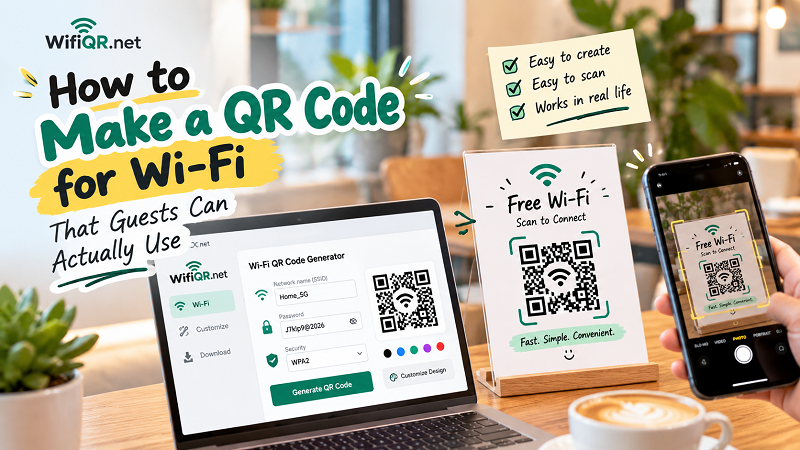
A straightforward generator lets you enter your network information, create the QR and download the result. make qr code for wifi becomes useful precisely because the process doesn't need unnecessary complexity.
The basic workflow is simple:
- Enter your Wi-Fi network name.
- Select the appropriate security option.
- Enter the network password.
- Add any relevant network settings.
- Generate the QR code.
- Scan it and verify that it works.
- Download the finished design.
The last two steps are where the smart part happens.
Don't treat “QR generated” as “job finished.”
Your First Test Should Be Boring
Boring is good here.
Take a phone and scan the QR.
Check whether it recognizes the expected Wi-Fi network. Confirm that the connection information is correct. If possible, test it with another phone as well.
Why two devices?
Because real users don't all have the same camera, operating system or scanning behavior. A QR that works beautifully on one phone shouldn't automatically be assumed to work everywhere.
If you're preparing a QR for a business, rental property or event, testing with multiple devices is an especially worthwhile few minutes.
A successful test gives you something more valuable than a pretty preview: confidence.
The Design Rule Nobody Should Break
Customize your QR if you want.
Just don't customize it into oblivion.
A Wi-Fi QR can look polished and still remain highly functional. You can use a branded frame, add a short instruction such as “Scan to Connect,” or incorporate a visual style that matches your space.
But the QR pattern itself needs enough contrast and clarity for cameras to recognize it.
Avoid burying the code inside a busy background. Don't make the pattern so faint that it becomes difficult to distinguish. Be cautious with decorative elements that overlap the QR's important areas.
And leave some clear space around the code.
That empty margin isn't wasted space. It helps scanning systems identify the QR properly.
Bigger Isn't Always Better — But Tiny Usually Isn't Great
There is no magical universal QR size that works for every situation.
The right size depends on the distance and environment.
A QR printed on a small card that someone holds in their hand can be relatively compact. A QR displayed on a wall needs to be large enough for someone standing several steps away. A tabletop sign has another set of requirements.
Think about the actual scanning position.
If someone has to lean forward, zoom their camera or stand awkwardly just to make the code recognizable, you've created unnecessary friction.
The best QR is the one people barely have to think about.
Where Should You Put It?
Placement can make or break the experience.
At home, a Wi-Fi QR might work well near the entrance, guest room or living area. You don't necessarily need to put it directly beside the router; guests rarely want to crawl behind furniture looking for internet information.
In a café or restaurant, the counter, table tent or another visible customer-facing area may make more sense.
In an office, meeting rooms and visitor areas are natural locations.
For a rental property, consider the welcome guide, check-in area or another place guests are likely to look when they first arrive.
The common thread is simple: put the QR where the question happens.
If guests usually ask for Wi-Fi when they sit down, put it near where they sit.
Give People One Clear Instruction
You don't need a paragraph of instructions next to a QR code.
Something as simple as:
Wi-Fi Available
Scan to Connect
is often enough.
The purpose of the text isn't to explain QR technology. It's simply to remove hesitation.
Someone should look at the sign and immediately understand:
“Oh, I can scan that.”
That's it.
The less thinking required, the better.
Should You Add a Logo or Change the Colors?
This is where aesthetics can be useful.
A branded Wi-Fi QR can look considerably more professional than a random QR printed directly from a basic page. Businesses can match the design to their existing visual identity, while homeowners can create something that fits naturally into their space.
But customization should support recognition, not compete with it.
If you're changing colors, maintain strong contrast. If you're adding a logo, make sure it doesn't interfere with the QR's readable structure. If you're using a decorative frame, keep the actual code clearly visible.
Think of design as seasoning.
A little can make something better. Too much ruins the meal.
Print It Like Someone Is Actually Going to Use It
The screen preview isn't the final product.
Once you download the QR, imagine how it will look in its actual environment.
Will it be printed on glossy paper? Placed behind glass? Exposed to sunlight? Viewed under dim restaurant lighting? Printed in a small welcome booklet?
These details matter.
If you're printing the QR, use a clean, high-quality version and avoid unnecessary compression. Check the printed result with a phone before making multiple copies.
And don't forget the simplest test of all: stand where your guest will stand and try scanning it.
If it works from there, you're on the right track.
A Wi-Fi QR Should Survive Real Life
A QR code isn't going to live inside a perfect design mockup forever.
Someone will photograph it. Someone will hold their phone at an angle. The lighting will be terrible. A table will move. The sign might get slightly dirty.
That's why practical design beats flashy design.
A QR that looks spectacular in a design tool but fails under normal conditions has missed the point.
Build for the messy version of reality.
Keep Guest Access Separate When Possible
There's also a security decision hiding behind the convenience.
If you're sharing Wi-Fi with customers, visitors or short-term guests, consider using a dedicated guest network rather than exposing the credentials for your primary network.
That's particularly relevant for businesses and smart homes where multiple devices are connected to the same network.
The QR makes sharing easier. It doesn't change who should have access to which network.
Convenience and security can coexist if the network setup is sensible from the beginning.
The Five-Minute Quality Check
Before putting your finished QR somewhere permanent, run through this quick checklist:
- Information: Is the SSID correct?
- Security: Does the selected security type match the network?
- Password: Is every character correct?
- Scanning: Does it work on more than one phone?
- Placement: Can people comfortably scan it from where they will actually stand or sit?
- Appearance: Is the QR clear enough in its final printed or displayed format?
If all six are good, you're probably ready.
The Best Wi-Fi QR Is the One Nobody Complains About
That's the funny thing about good QR design.
Nobody is going to compliment you because their phone connected to Wi-Fi in three seconds.
And that's exactly the point.
The process should disappear into the background.
Guests shouldn't have to ask where the password is. Customers shouldn't have to flag down an employee. Visitors shouldn't have to type a long string of characters while standing in a doorway.
They scan. They connect. They move on.
That's a successful Wi-Fi QR code.
Final Thought
Creating a Wi-Fi QR code is the easy part. Creating one that works smoothly in the real world takes a little more thought.
Start with accurate network information, test before sharing, keep the design readable, choose a sensible size and place the QR exactly where people will need it.
Don't design for the screenshot.
Design for the person holding the phone.
Because ultimately, the best Wi-Fi QR code isn't the fanciest one. It's the one that makes connecting feel almost effortless.