WiFi QR Code to Password: What If the QR Is Your Only Backup?
Have a Wi-Fi QR code but forgot the password? Learn what you can and cannot recover from the QR, what to try when the password is hidden, and how to avoid losing access again.
You’re standing in front of a router, staring at a Wi-Fi QR code, and suddenly realize you have no idea what the password is.
- You Have the QR — But Where Did the Password Go?
- First, Make Sure It's Actually a Wi-Fi QR Code
- Let the Phone Tell You What It Knows
- What If the Password Still Doesn't Appear?
- The QR Might Be Carrying Old Information
- A QR Can Connect You Without Giving You the Password
- Don't Confuse the Wi-Fi Password With the Router Login
- What If You Need the Password for a New Device?
- When the QR Is the Only Thing You Have Left
- Make Sure You Don't Lose the Information Again
- When You Should Create a Fresh QR
- The Real Lesson: Keep Two Ways Into Your Network
If you've ever searched for wifi qr code to password, you're probably dealing with exactly this situation: the QR code still works, your phone can recognize it, but the actual Wi-Fi password seems to have vanished from your memory.
The Wi-Fi still works. Your phone can connect. The QR code is sitting right there. But now you need to connect a laptop, give the password to a new device, or write the credentials down somewhere safe — and the actual password has completely disappeared.
This is one of those situations where a QR code can be incredibly useful and slightly frustrating at the same time. It may contain the information needed to connect to the network, but that doesn't automatically mean every phone will show you the original password in plain text.
So, before you start resetting the router, here's what you should know.
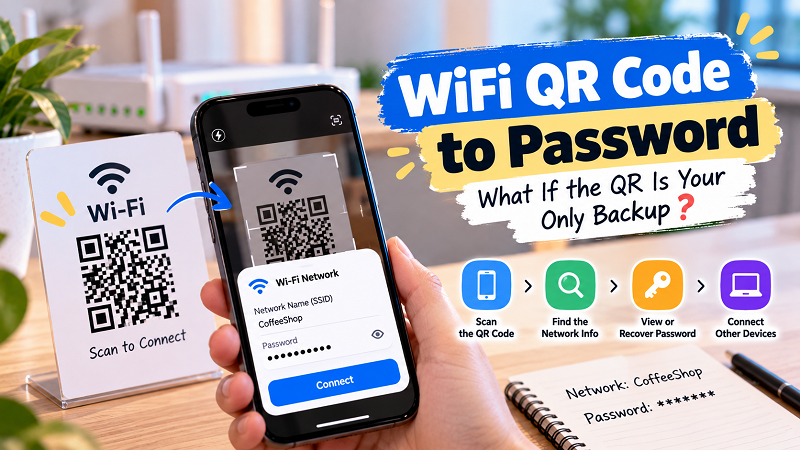
You Have the QR — But Where Did the Password Go?
A Wi-Fi QR code is essentially a convenient way of carrying network connection information.
Instead of manually typing a network name and password, a compatible device can read the information and use it to connect. That's why the QR can still be useful even when you've completely forgotten the password.
The catch is that different devices and operating systems don't necessarily expose that information in the same way.
One phone might offer an option to share or view network details. Another might simply offer to connect. A third device may recognize the QR but give you very little useful information beyond the fact that it's a Wi-Fi network.
So if you scan the code and don't immediately see a password, that doesn't necessarily mean the password isn't there. It may simply mean your device isn't presenting it to you in an obvious way.
First, Make Sure It's Actually a Wi-Fi QR Code
Before trying to recover anything, identify what you're looking at.
Not every QR code next to a router is necessarily a Wi-Fi credential QR. It could point to a website, display ordinary text, open a digital menu, or perform another action entirely.
A genuine Wi-Fi QR is intended to provide structured information that a compatible device can recognize as network credentials.
This distinction matters because scanning a QR successfully doesn't tell you what kind of information it contains. The camera can recognize the pattern perfectly while the content turns out to be something completely different from what you expected.
If your phone offers a Wi-Fi connection option after scanning, that's a strong indication you're dealing with a network QR rather than a generic QR containing a random URL or text.
Let the Phone Tell You What It Knows
The easiest place to start is the device you're holding.
Scan the QR and look at the options your phone provides. Depending on the operating system and version, you may be able to connect directly, share the network, or view additional network information.
This is where things become slightly inconsistent across devices. There isn't one universal screen that every phone uses.
On some devices, the Wi-Fi sharing interface can reveal more information than the camera scanner itself. On others, the phone is primarily interested in getting you connected and doesn't make the underlying credentials particularly obvious.
That's why it's worth exploring the network-sharing or Wi-Fi settings rather than assuming the camera's first response is the end of the story.
What If the Password Still Doesn't Appear?
Don't panic. You still have several options.
The first is to check another device that is already connected to the network. Depending on the platform, a previously connected device may provide more useful network-sharing or credential options than the device you originally scanned with.
You can also check the router itself. Many routers have their original network name and password printed on a label, although this won't help if the password was changed later.
If you're the person who manages the network, the router's administration interface may also provide the information you need.
The important thing is not to assume that the QR code is your only possible source of information. Think of it as one piece of the backup system.
The QR Might Be Carrying Old Information
Here's an easy mistake to make: assuming that because the QR code still scans, the information inside it must still be current.
Not necessarily.
Imagine that you created a Wi-Fi QR code in January. In June, you changed the router password. In September, someone scans the old QR.
The code still looks exactly the same. It hasn't magically updated itself.
If the QR was created as a static code, the information inside it remains whatever was encoded when the code was made. Changing the router password later doesn't rewrite the QR sitting on your wall.
This is particularly important when you're trying to recover a forgotten password. The password contained in the QR may be the old password rather than the one currently used by the router.
A QR Can Connect You Without Giving You the Password
This distinction is easy to overlook.
Imagine you're staying at a vacation rental. There's a Wi-Fi QR code beside the welcome information. You scan it, tap the connection prompt, and you're online.
Mission accomplished.
But then your laptop asks for the password.
Suddenly, the QR feels much less magical.
That's because connecting to a network and displaying its credentials are two different things. A device may be perfectly capable of using the information encoded in the QR without necessarily giving you that information as readable text.
So if your immediate goal is simply getting your phone online, you may not need the password at all.
If your goal is recovering the password for another purpose, you'll need to look at what your device, router, or previously connected devices allow you to access.
Don't Confuse the Wi-Fi Password With the Router Login
Another common source of confusion is the router's administrator password.
Routers can have credentials for different purposes. The Wi-Fi password is used by devices joining the wireless network. The administrator credentials are used to access the router's configuration interface.
They aren't necessarily the same thing.
If you're trying to recover the Wi-Fi password, don't assume that the login information printed on a router or supplied by your internet provider is automatically the wireless password.
Look for the actual wireless network credentials.
This becomes particularly important when a router has been configured by an ISP or another person. The information on the device may represent the original setup rather than the current network configuration.
What If You Need the Password for a New Device?
This is where your options depend heavily on the devices already connected to the network.
If another phone, tablet, or computer is already connected, check whether its Wi-Fi settings provide a way to share the network or reveal its credentials.
If that doesn't work, check the router's documentation or administration settings if you have access to them.
And if you're not the network administrator — for example, you're a guest in someone else's home, office, or rental property — asking the owner for the current password may genuinely be the simplest solution.
There is no prize for turning a five-second conversation into a 45-minute networking investigation.
When the QR Is the Only Thing You Have Left
Now for the tricky scenario.
You've moved into a new place. The router belongs to someone else. Nobody remembers the password. The only thing available is a printed QR code.
In that situation, don't destroy or replace the QR immediately.
Keep it intact and see whether a compatible device can use it to connect. If connection works, you've at least confirmed that the QR contains usable network information.
From there, you can investigate whether the connected device offers network-sharing or credential options.
If you have administrative access to the router, that's another route. If you don't, the network owner or administrator may ultimately be the only person who can provide the current password.
The QR can be an excellent backup, but it isn't a universal password-recovery tool.
Make Sure You Don't Lose the Information Again
Once you've recovered the current Wi-Fi credentials, this is a good moment to stop the same problem from happening again.
Write the network name and password somewhere secure. Keep a digital record if appropriate. If you're responsible for a home or business network, make sure there's a clear place where authorized people can find the current credentials.
And keep the QR code too.
The two serve slightly different purposes. A password is useful when you need to manually enter the credentials. A QR is useful when you want a compatible device to connect without typing everything character by character.
Having both gives you a much better backup than relying on either one alone.
When You Should Create a Fresh QR
If the Wi-Fi password has changed, the network name has changed, or the existing QR belongs to an old router configuration, creating a fresh QR is usually the sensible next step.
The same applies if the printed code has become damaged, faded, or difficult to scan.
Just make sure you verify the current network details first.
Otherwise, you could create a brand-new QR containing yesterday's password — which is basically putting a fresh coat of paint on the wrong door.
The Real Lesson: Keep Two Ways Into Your Network
A QR code is fantastic for convenience, but convenience shouldn't be confused with having a complete backup.
If you only keep the QR and forget the password, you may eventually run into a device that wants the credentials in plain text. If you only keep the password, meanwhile, you're giving every guest or visitor another long string of characters to type manually.
Keep both.
The QR handles the quick connection. The password handles situations where a device needs the actual credentials. Together, they make your Wi-Fi much easier to manage.
And if you ever find yourself staring at a little square QR code thinking, “I know this thing contains my Wi-Fi password… I just can't remember what it is,” don't reset the router in frustration.
Start with the devices you already have, check what information they expose, verify whether the QR is current, and work backward from there.
Sometimes the password isn't lost at all. It's just hiding behind a QR code.