WiFi Code QR Generator: How to Choose the Right Setup
Need a WiFi code QR generator for home, guests, or business? Learn how to choose the right network, avoid QR mix-ups, and test before printing.
There’s a funny thing about Wi-Fi: once you have more than one network, “just scan the QR code” suddenly becomes a little less simple.
- One Router Doesn't Always Mean One Wi-Fi Network
- Start With the Person Who Will Scan It
- What Should You Have Ready Before Creating the Code?
- Why the Generator Matters More Than the Fancy Design
- Don't Give Every Visitor Your Main Network
- Two Networks With Similar Names? Label Everything
- What About 2.4 GHz and 5 GHz?
- Put the QR Where People Actually Need It
- Test It Before You Print 50 Copies
- A Simple Setup for Different Situations
- The QR Is the Last Step, Not the First
Your home might have a main network and a guest network. A café might have separate Wi-Fi for customers and staff. An office may use different networks for employees, visitors, meeting rooms, and devices. Some routers even show separate 2.4 GHz and 5 GHz networks.
Now imagine putting a QR code on the counter without thinking about which network it represents. Someone scans it, connects successfully… and realizes they’ve just joined the wrong network.
The technology isn't the difficult part. Choosing the right network and organizing the resulting QR codes is. That's where a good setup makes a surprisingly big difference.
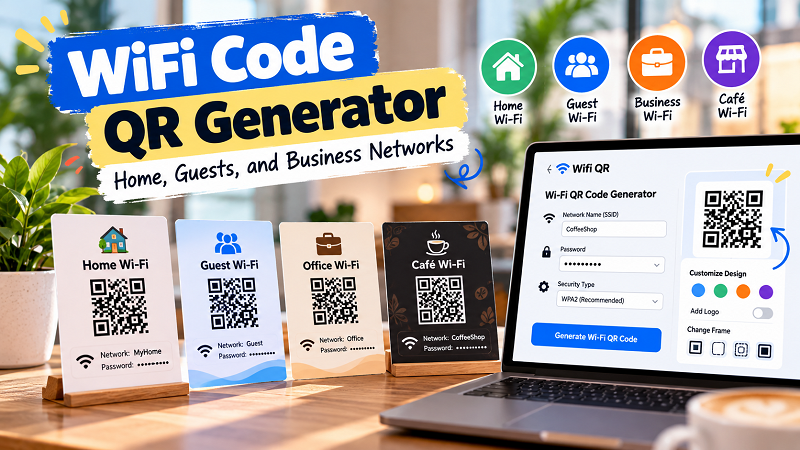
One Router Doesn't Always Mean One Wi-Fi Network
When people think about Wi-Fi, they often picture one router, one network name, and one password. That's perfectly normal for a basic home setup, but plenty of real-world networks don't work that way.
A modern router can broadcast multiple networks for different purposes. You might have a private network for yourself, a guest network for visitors, and another network dedicated to smart devices. A business may go even further.
Each network can have its own name and password, which means each one can require its own QR code.
That's the first decision to make before opening any generator: Which network are you actually trying to share?
It sounds obvious, but this one question prevents a lot of unnecessary confusion later.
Start With the Person Who Will Scan It
Instead of starting with the QR code, start with the person standing in front of it.
If you're creating a QR for family members at home, they may need access to the regular private network. If you're creating one for Airbnb guests, a dedicated guest network is usually the more logical choice. A restaurant or café might want customers to access the public network without exposing the network used by employees and internal devices.
The QR code is simply the delivery mechanism. The important decision happened before the QR was generated.
Think about the situation like this:
- Private network → people you trust.
- Guest network → visitors who need internet access.
- Business network → employees or authorized users.
- Public network → customers or general visitors.
Once you decide who the QR is for, choosing the correct Wi-Fi information becomes much easier.
What Should You Have Ready Before Creating the Code?
You don't need to turn this into a technical networking project. You simply need the current information for the network you're sharing.
The network name is the obvious starting point. Then you need the current Wi-Fi password and the appropriate security information. If your network is hidden or has an unusual configuration, that's worth knowing before you create anything.
The key word here is current.
Don't copy the password from an old note just because it looks familiar. Don't grab the network name from a screenshot you took a year ago. And don't assume the information printed on an old card is still accurate after you've replaced the router.
A QR code doesn't know whether your Wi-Fi has changed. It only knows what you gave it.
Why the Generator Matters More Than the Fancy Design
It's tempting to focus on appearance first. You find a tool, change the colors, add a logo, round the corners, and make the QR look fantastic.
That's fun. But the design should come second.
When choosing a wifi code qr generator, pay attention to the fundamentals first. The tool should correctly encode the Wi-Fi information, produce a QR that remains easy to scan, and give you an output suitable for wherever you're going to use it.
Then look at customization.
A QR printed on a small card doesn't have the same requirements as one displayed on a large café sign. A QR intended for a welcome book has different design considerations from one placed beside a hotel reception desk.
Good customization should make the QR easier to use, not turn it into a piece of modern art that your phone refuses to recognize.
Don't Give Every Visitor Your Main Network
For homes and businesses, a guest network can make the whole QR setup cleaner.
Imagine having friends over. You could give everyone the password to your primary network, or you could give them access to a guest network designed specifically for visitors.
The same idea works for businesses. Customers generally don't need access to the same network used by employees, printers, internal devices, or other infrastructure.
This is less about QR codes and more about good network organization. The QR simply makes access to the intended network faster.
And there's another benefit: when you eventually change the guest password, you can update the guest QR without having to rethink every device connected to your private network.
Two Networks With Similar Names? Label Everything
This is where a tiny amount of extra effort can save a lot of headaches.
Suppose you have:
Home Wi-Fi
Home Wi-Fi Guest
If you print two nearly identical QR codes and leave them side by side, you've created a puzzle nobody asked for.
Instead, put a clear label beside each code. Something as simple as “Guest Wi-Fi” or “Staff Wi-Fi” immediately tells people what they're about to connect to.
This is particularly useful in businesses, hotels, rental properties, offices, and event spaces where the person scanning the QR may know absolutely nothing about the network setup.
A QR code without context asks users to trust a mystery square. A QR code with a clear label tells them exactly what they're getting.
What About 2.4 GHz and 5 GHz?
This can get confusing because some routers present these as separate networks while others combine them under one network name.
If your router uses separate SSIDs, treat them as separate networks when creating your QR codes. Don't assume that a QR for one automatically represents the other.
For example, you might see:
CoffeeShop WiFi
CoffeeShop WiFi 5G
Those are not interchangeable just because they come from the same router.
If both networks are intended for guests, make the distinction obvious. Otherwise, someone might scan a code expecting one network and end up connected to another.
If your router automatically manages the bands under a single network name, there's less to think about. The important thing is to create the QR based on the actual network configuration rather than guessing what the router is doing behind the scenes.
Put the QR Where People Actually Need It
Once you've created the right code, placement becomes the next challenge.
At home, a small card near the entrance or dining area may be enough. In an Airbnb, the QR could sit inside the welcome book or near the information guests see when they arrive. In a café, the counter or menu may make more sense. In an office, a meeting room can have its own clearly labeled guest Wi-Fi QR.
The goal isn't to plaster QR codes everywhere.
It's to put the right QR where the right person is most likely to need it.
This also makes your setup easier to maintain. If the guest network changes, you know exactly which signs, cards, or pages need to be updated.
Test It Before You Print 50 Copies
This is the step people love to skip because everything looks fine on screen.
Don't.
Scan the QR using a phone that isn't already connected to the network. If possible, test it with another device too. Confirm that the expected network appears and that the connection actually works.
Then test the physical version if you're going to print it.
A QR that works beautifully on your monitor can become harder to scan after being reduced, printed, placed behind plastic, or surrounded by a busy design.
You don't need a laboratory. You just need to experience the QR the same way your guests or customers will.
If they will scan it from a table two feet away, test it from two feet away. If they'll scan a poster on a wall, test the poster. Real-world testing beats staring at a QR on your screen and declaring victory.
A Simple Setup for Different Situations
For a home, one QR for the regular network may be all you need. If you frequently have visitors, adding a separate guest network and QR can make sharing much easier.
For a small business, consider separating customer and staff access. Give customers a clearly labeled public Wi-Fi QR while keeping internal networks separate.
For an Airbnb or rental property, a guest network with a clearly labeled QR can be included in the welcome materials. If the password changes between stays or seasons, updating the guest QR is straightforward.
For an office or event venue, think about location. A meeting-room QR might serve a different purpose from the network information displayed at reception.
There isn't one universal QR setup. The right arrangement depends on who needs access, where they need it, and which network they're supposed to use.
The QR Is the Last Step, Not the First
That's probably the biggest takeaway.
Creating the QR itself is easy. The more interesting work happens beforehand: deciding which network should be shared, confirming that the credentials are current, choosing whether guests should use a separate network, labeling the code clearly, and deciding where it belongs.
Once those decisions are made, generating the QR is almost the boring part — which is exactly how it should be.
A well-planned Wi-Fi QR setup disappears into the background. Someone walks in, sees “Guest Wi-Fi,” scans the code, taps connect, and gets on with their day.
No asking for the password. No typing confusing characters. No squinting at a sticker stuck behind the router.
Just scan, connect, done.