WiFi QR Code Scans but Won’t Connect? Try These Fixes
Your WiFi QR code scans correctly but won’t connect? Learn what to check when the network name, password, security type, or QR print causes connection problems.
You point your phone at the QR code, the camera recognizes it instantly, and for a second you think, “Perfect.” Then… nothing. The phone refuses to join the network, asks for a password, or simply sits there pretending it has better things to do.
- Start With the Wi-Fi Name
- A Correct Password Can Still Be the Wrong Password
- Don't Ignore the Security Setting
- Try a Second Phone Before You Rebuild Everything
- What If the QR Code Only Fails After You Print It?
- Check Whether the Network Itself Is Actually Available
- Watch Out for Old QR Codes Around the House
- Before Printing a Stack of Them, Run a Real-World Test
- When Creating a New QR Code Makes Sense
- The 60-Second Wi-Fi QR Check
A QR code that scans successfully is not necessarily a QR code that contains the right Wi-Fi information. That distinction is easy to miss. The code itself can be perfectly readable while the network details inside it are outdated, incomplete, or incompatible with the device trying to connect.
If your wifiqr code looks fine but guests still cannot get online, don’t immediately print a new one. Start with the actual network information and work through the problem logically.
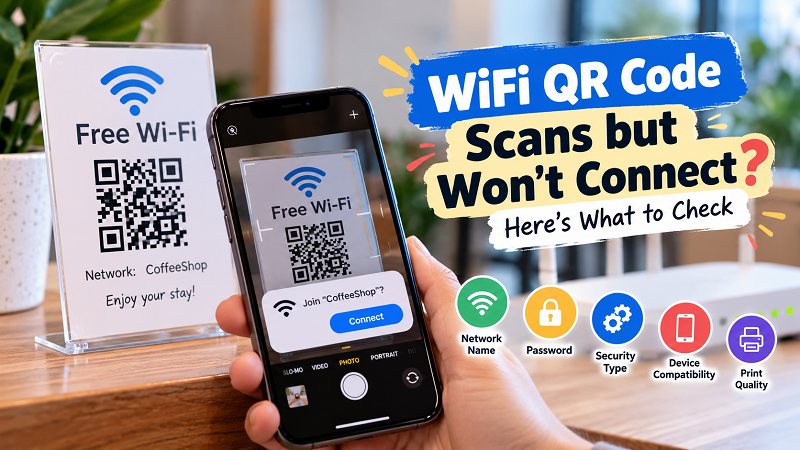
Start With the Wi-Fi Name
The network name, usually called the SSID, is one of the first things worth checking. It has to match the network exactly. A small difference can be enough to send a device looking for the wrong network.
This becomes particularly easy to overlook when a router has been replaced or the Wi-Fi name was recently changed. Maybe the old network was called “SmithFamilyWiFi” and the new one is “SmithFamilyWiFi_5G.” To a person, that looks like a minor change. To a QR code, they are completely different networks.
Hidden networks can also complicate things. If the QR code was created with information for a hidden network, the receiving device may behave differently from what you expect. Before blaming the QR code, compare the network name shown by the router with the network information encoded in the code.
A Correct Password Can Still Be the Wrong Password
This sounds ridiculous until you remember how often people change Wi-Fi passwords.
You may have created a QR code six months ago, changed the router password last month, and completely forgotten that the printed code still contains the old credentials. The QR image hasn't changed. It still scans beautifully. Unfortunately, it is faithfully delivering yesterday's information.
The same problem can happen when someone copies the password manually and accidentally includes an extra space or misses a character. Passwords containing symbols can also deserve extra attention because a QR code isn't magic; it simply carries the information that was entered when it was created.
A useful test is surprisingly simple: try connecting to the same network manually using the password you currently know. If manual connection works but the QR code doesn't, the QR may contain outdated information.
Don't Ignore the Security Setting
Wi-Fi isn't defined by the network name and password alone. The security configuration matters too.
Modern routers commonly use security standards such as WPA2 or WPA3, while older devices may have different compatibility limitations. If a QR code was created with one security setting and the network has since been configured differently, the information in the QR may no longer accurately describe the network.
This is especially worth checking after changing router hardware. A new router can preserve the same Wi-Fi name while changing other network settings behind the scenes. From the user's perspective, everything looks familiar. Underneath, however, the network may have changed.
If the QR works for some devices but consistently fails for another, device compatibility becomes more interesting than the QR itself.
Try a Second Phone Before You Rebuild Everything
Here is one of the fastest troubleshooting tricks: test the same QR code with another phone.
If two different phones scan the code and neither can connect, you probably have a problem with the information in the QR or with the Wi-Fi network itself.
If one phone connects immediately while another refuses, the situation is different. The QR may be perfectly fine, and the problem could involve the second device's saved network settings, operating system, compatibility, or wireless configuration.
You can also try forgetting the Wi-Fi network on a device that has connected to it before. Phones sometimes hold onto old network information, and that can make troubleshooting more confusing than it needs to be.
Think of this as a simple process of elimination: same QR + different phones = useful evidence.
What If the QR Code Only Fails After You Print It?
This one catches people off guard.
A QR code displayed on a laptop can scan perfectly, while the same code printed on a tiny sticker becomes frustratingly difficult to read. The problem isn't necessarily the information inside the QR. It can be the physical presentation.
Size matters. Contrast matters. The printing surface matters. A glossy surface, low-quality print, decorative background, or QR that has been squeezed into a tiny space can all make scanning harder.
Distance matters too. A guest standing across a room shouldn't have to perform an awkward balancing act with their phone just to find the right angle.
If your QR works digitally but struggles when printed, try producing a larger version with strong contrast and enough empty space around the code. Don't sacrifice scanability just because a smaller design looks nicer on the wall.
Check Whether the Network Itself Is Actually Available
Sometimes the QR code gets blamed for a problem caused entirely by the router.
Is the Wi-Fi turned on? Is the access point working? Can another device connect manually? Is the router showing an error? Has the internet connection gone down?
Remember that joining a Wi-Fi network and accessing the internet are two separate things. A device can successfully connect to the local Wi-Fi while the router has no internet connection.
That means “the QR didn't work” can actually describe several different situations: the QR wasn't readable, the QR contained incorrect credentials, the phone couldn't authenticate, the device joined Wi-Fi but had no internet, or the router itself was having a bad day.
Identifying which one you're actually seeing saves a lot of unnecessary QR-code surgery.
Watch Out for Old QR Codes Around the House
This is particularly common in homes, cafés, offices, vacation rentals, and small businesses.
Someone changes the Wi-Fi password but forgets about the QR code sitting on the counter. Then another QR is printed for the new password. Suddenly there are two codes floating around, and nobody knows which one is current.
The same thing can happen when a business has several locations or networks. A QR from the meeting room gets moved to the reception desk. A guest scans it expecting the public network and ends up trying to join a private one.
A simple label can prevent a surprising amount of confusion. Instead of displaying a QR by itself, add a short description such as Guest Wi-Fi, the network name, or the location where the network is intended to be used.
That way, people can immediately see whether they're scanning the right code.
Before Printing a Stack of Them, Run a Real-World Test
A QR code that works once on your own phone isn't fully tested yet.
Try scanning it from the distance at which a guest will actually use it. Test it on another phone. If you're printing it, test the printed version rather than only the digital original. If the network is intended for guests, test it after temporarily forgetting the network on a device that has previously connected.
You want to answer four basic questions:
Can the camera recognize the code? Can the device identify the correct network? Can it authenticate successfully? Can the device actually use the connection afterward?
If all four answers are yes, you're in much better shape than simply confirming that a QR scanner recognizes the image.
When Creating a New QR Code Makes Sense
Sometimes the quickest solution really is to start fresh. If the Wi-Fi name or password has changed, the router's security configuration has changed, the existing QR was created incorrectly, or the printed version has become damaged, an updated code can eliminate the problem.
But don't recreate a QR code blindly. First confirm the current network name, password, and security setup. Otherwise, you can end up generating a beautiful new QR code containing the exact same wrong information.
That's the frustrating part about these problems: the QR code itself usually isn't “broken.” It is doing exactly what it was designed to do — delivering the information that was put into it. The real question is whether that information still matches the Wi-Fi network sitting behind it.
The 60-Second Wi-Fi QR Check
If you need a quick checklist before blaming the QR, run through this:
- Network name: Does the SSID exactly match?
- Password: Is it the current password?
- Security: Does the QR information match the router's current security setup?
- Device: Can another phone connect?
- Router: Can a device connect manually?
- Print: Does the physical QR remain easy to scan?
- Location: Is this definitely the QR for the network you want guests to use?
- Changes: Was the router, password, or network name recently changed?
If everything checks out, you can stop chasing ghosts and focus on the actual connection problem.
A Wi-Fi QR code is supposed to make connecting effortless. When it doesn't, the answer isn't always “make another QR.” Sometimes the smartest move is simply to compare what the QR says with what the network is actually doing. Once those two things match, that little square of black-and-white pixels can get back to doing its one job: getting people online without making them type a 20-character password.