Wi-Fi QR Codes for Older Guests: Make Connecting Easier
Make Wi-Fi QR codes easier for older guests and less tech-savvy visitors with clearer instructions, better signage, and a simple backup option.
A Wi-Fi QR code can look ridiculously simple. Put it on a sign, point a phone at it, tap the notification, and you're online. Done.
- A Working QR Code Can Still Be Confusing
- Don't Assume Everyone Knows What “Scan” Means
- Make the Wi-Fi Sign Self-Explanatory
- A QR Code Shouldn't Be the Only Door
- Bigger Isn't Always Better — But Tiny Definitely Isn't
- Put the Instructions Where the Question Happens
- Test It With Someone Who Didn't Build It
- The Best Wi-Fi QR Is the One Nobody Has to Explain
Except... not everyone sees it that way.
For someone who uses QR codes every day, a black-and-white square practically screams, “Scan me.” For an older guest or someone who isn't particularly comfortable with smartphone features, that same square can look like a random piece of technology with no obvious instructions attached.
That doesn't mean the person is bad with technology. It simply means that something obvious to the person who created the setup may not be obvious to the person using it.
And that's an important distinction when you're using a Wi-Fi QR code at home, in an Airbnb, café, office, guest room, community space, or anywhere else where different kinds of people need to get online.
A Working QR Code Can Still Be Confusing
Here's an easy trap to fall into: you test your Wi-Fi QR code, it works perfectly, and you assume the job is finished.
Technically, it might be.
But the guest doesn't experience your QR code as a technical object. They experience it as a little decision-making problem.
Do I open the camera? Do I need a QR scanner? Do I take a picture? What happens after I scan it? Is this actually the Wi-Fi? Why did something pop up on my screen? Do I tap that?
If you've used QR codes hundreds of times, those questions probably sound almost comically basic. That's precisely why they're easy to overlook.
A good Wi-Fi setup isn't only about whether the QR code works. It should also make the next action obvious to someone who has never seen your setup before.
Don't Assume Everyone Knows What “Scan” Means
“Scan to connect” sounds perfectly clear until you think about what it actually assumes.
It assumes the guest knows that their phone camera can recognize the QR code. It assumes they know where to point the camera. It assumes they understand that a notification may appear after detection. It even assumes they know that tapping that notification is the next step.
For a regular QR user, that's one smooth interaction.
For someone unfamiliar with the process, it's several unanswered questions packed into three words.
A slightly more descriptive instruction can remove much of that friction:
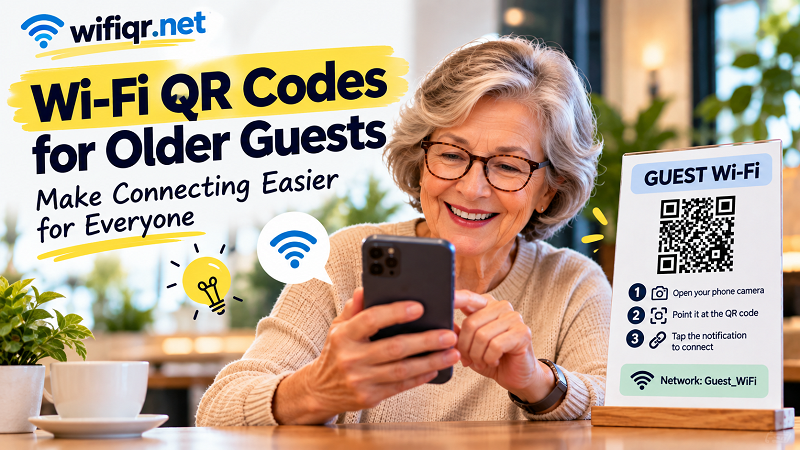
1. Open your phone camera.
2. Point it at the Wi-Fi QR code.
3. Tap the notification to connect.
That's it. No giant manual. No technical jargon. Just enough guidance to turn an unfamiliar action into a predictable one.
The trick is simple: don't explain the technology; explain the action.
Make the Wi-Fi Sign Self-Explanatory
Your Wi-Fi sign doesn't need to win a graphic design award. It needs to answer one question quickly:
“What am I supposed to do?”
A straightforward layout might look something like this:
GUEST WI-FI
1. Open your phone camera
2. Point it at the QR code
3. Tap the notification
Network: Guest_WiFi
[QR CODE]
That arrangement gives the guest context before asking them to interact with the code.
It also helps to use readable typography and enough spacing between the instructions and the QR code. A visitor shouldn't have to squint at tiny text, decipher a decorative font, or wonder whether the QR code belongs to the Wi-Fi or something else.
This matters even more when the sign is sitting in a guest room or common area where people may be looking at it from a little distance.
The goal isn't to make the sign fancy. The goal is to make it impossible to misunderstand.
A QR Code Shouldn't Be the Only Door
There's another useful principle here: convenience shouldn't become a dead end.
Some people will happily scan the QR code. Others won't.
Maybe their phone doesn't recognize the code immediately. Maybe they're using an older device. Maybe they simply prefer entering network information manually. Or maybe they have never used a QR code before and would rather connect another way.
That's why a backup option can be surprisingly valuable.
You might display the network name and password somewhere nearby, provide the information on a welcome card, or simply be ready to tell guests how to connect manually.
The QR code is the shortcut. It doesn't have to be the only entrance.
This is especially useful when you're preparing a wifi password qr setup for a mixed group of visitors. The people who love QR codes can connect instantly, while everyone else still has a straightforward alternative.
That's a much better experience than forcing every guest to interact with technology in exactly the same way.
Bigger Isn't Always Better — But Tiny Definitely Isn't
Accessibility doesn't mean covering the wall with instructions.
It means making the important information easy to recognize.
A QR sign for a guest room, for example, doesn't need five paragraphs explaining wireless networking. It needs a clear title, readable instructions, a recognizable QR code, and enough space around everything so the information doesn't become visual clutter.
Pay attention to the words around the QR code, too.
“Scan” may be enough for a tech-savvy crowd. “Open your camera and point it at the code” is more universally understandable.
Likewise, avoid making the network name look like an afterthought. If the guest needs to verify which network they're joining, that information should be easy to find.
Think of the sign as a tiny interface.
The QR code is the button. Your text is the label. The surrounding layout tells people what to do next.
Put the Instructions Where the Question Happens
Placement matters, but not simply because some locations have better visibility.
Think about the moment when the guest is actually trying to get online.
In a guest room, the Wi-Fi information might belong with the welcome information rather than hidden beside the router.
In an Airbnb, it can sit alongside the other arrival details so visitors encounter it when they're settling in.
In a café, the information makes more sense on a table, counter sign, menu, or another place where customers naturally start looking for Wi-Fi.
The principle is straightforward:
Put the answer where the question appears.
If someone has to walk around searching for the Wi-Fi instructions, the QR code has already failed at one part of its job, even if the actual code scans perfectly.
Test It With Someone Who Didn't Build It
Here's one of the easiest ways to find problems in your Wi-Fi QR setup: give it to someone who didn't create it.
Tell them:
“Connect to the Wi-Fi.”
Then stay quiet.
Don't point at the QR code. Don't explain what the sign means. Don't tell them which button to press.
Just watch.
Do they immediately understand what the QR code is for? Do they open the camera? Do they know what to do when the phone recognizes the code? Do they hesitate? Do they ask a question?
Those moments are useful.
As the person who created the QR code, you already know what everything means. That makes it surprisingly difficult to judge whether the sign communicates clearly to someone seeing it for the first time.
A five-minute real-world test can reveal more than staring at the design on your computer for an hour.
And if your tester says, “What do I do now?” don't blame the user.
That's your interface talking.
The Best Wi-Fi QR Is the One Nobody Has to Explain
A good Wi-Fi QR code should make connecting easier, but the QR itself is only one piece of the experience.
For older guests and less tech-savvy visitors, the difference between “this is confusing” and “oh, that's easy” can be as small as three clear instructions.
Make the action obvious. Keep the text readable. Give people enough context to understand what they're looking at. And keep a manual connection option available for anyone who doesn't want to scan.
You don't need to design Wi-Fi access around the most tech-savvy person in the room.
Design it for the person who pauses for a second and asks, “What am I supposed to do with this?”
If they can figure it out without needing someone to rescue them, you've built a better Wi-Fi experience.