Generate QR Code for WiFi: 5 Things to Check First
Want to generate a QR code for WiFi? Check your network name, password, security type, QR size, and scan test first to avoid common connection problems.
A Wi-Fi QR code can be generated in seconds. That part is easy.
- 1. Start With the Exact Wi-Fi Name
- 2. Your Password Doesn't Need a Makeover
- 3. Know What Security Your Network Uses
- 4. Decide Where the QR Code Will Live
- 5. Test the Real Thing, Not Just the Preview
- Generate the QR Only After the Details Are Ready
- A Quick Pre-Print Checklist
- Don't Let Design Get in the Way
- The Goal Is Not a Pretty QR. It's a Working Connection.
The part people tend to underestimate is everything that happens before and after you press the generate button.
A QR code can look perfectly normal, print beautifully, and still leave someone staring at their phone wondering why the Wi-Fi won't connect. The QR itself may not be the problem at all. One incorrect character in the network name, a wrong security setting, or a code that is simply too small to scan can ruin the whole experience.
So before you generate a QR code for Wi-Fi, take a moment to get the fundamentals right. Five small checks can save you from a surprisingly annoying troubleshooting session later.
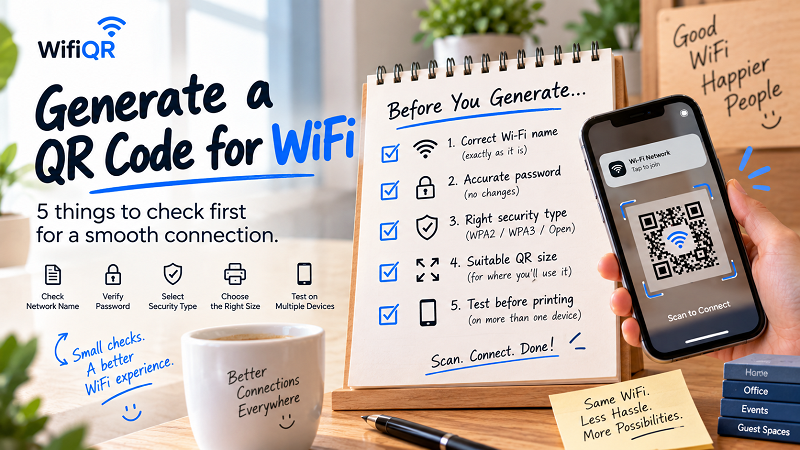
1. Start With the Exact Wi-Fi Name
Your Wi-Fi name, or SSID, is not just a label. It is part of the information a device uses to identify the network.
That means you shouldn't casually retype it from memory.
If your router says:
MyHome_WiFi-5G
don't enter:
MyHome_Wifi-5G
And don't remove a space because you think it looks unnecessary. Don't change an underscore into a hyphen. Don't "clean up" the name to make it prettier.
Computers are not impressed by your editing skills.
The safest approach is to copy the network name exactly as it appears in your router settings or on the device already connected to the network.
This becomes especially important when you have several networks with similar names. A home might have separate 2.4 GHz and 5 GHz networks, while an office could have employee, guest, and IoT networks running at the same time.
Before generating anything, make sure you are working with the network you actually want people to use.
2. Your Password Doesn't Need a Makeover
Strong Wi-Fi passwords are often ugly. That's fine. They're not competing in a beauty contest.
The problem starts when people try to make them easier to type by changing the original password before putting it into a QR code.
Don't do that.
If the password contains uppercase letters, numbers, symbols, or unusual characters, keep them exactly as configured.
For example:
Coffee@2026!Guest
is not the same as:
coffee@2026!guest
And if you accidentally include an extra space at the beginning or end while copying the password, you may end up with a QR code that scans successfully but doesn't produce the connection you expected.
The QR code isn't going to magically correct your typo.
That's why checking the original Wi-Fi credentials first is one of the most important steps in the entire process.
3. Know What Security Your Network Uses
This is the part that many casual users overlook.
Wi-Fi networks can use different security configurations, including common standards such as WPA2 and WPA3. Some networks may also be configured as open networks without a password.
When creating a Wi-Fi QR code, the security information needs to match the actual network.
You don't necessarily need to understand every technical detail behind your router's security settings. You simply need to know what configuration the network is using and enter the correct option when generating the QR code.
Think of it like entering an address into a navigation app. The street name alone isn't always enough. The surrounding information needs to point to the right destination.
If the security type doesn't match, the QR may contain valid-looking information while the receiving device still can't connect correctly.
4. Decide Where the QR Code Will Live
Here's a mistake that happens more often than you'd expect: people generate the QR code first and only think about its physical location afterward.
That's backwards.
A QR code sitting on a phone screen has very different requirements from one printed on a wall several feet away.
Think about its final destination before you generate and print it.
A small card on a restaurant table can be relatively compact because people will naturally hold their phones close to it. A QR code displayed behind a reception desk may need to be larger. A sign mounted on a wall should be designed for the distance from which people will actually scan it.
There are also environmental factors.
Will people scan it under bright sunlight? In a dim restaurant? Through a plastic sign? From a laminated menu?
A QR code doesn't need to be enormous, but it does need enough visual clarity for the camera to recognize its pattern reliably.
And please don't squash it just to make it fit a design.
A square QR code should remain a square QR code. Stretching or distorting it can interfere with scanning.
5. Test the Real Thing, Not Just the Preview
This is the step people skip because everything looks fine on screen.
Then they print 100 copies.
Then someone says, "It doesn't work."
Test before printing.
First, scan the QR with your own phone. Make sure the correct network appears and that the connection process works as expected.
Then, if possible, test it with another phone. Different devices and operating systems can behave differently, and a successful test on one device doesn't guarantee that every other device will behave identically.
If the QR will be printed, test the printed version too.
This matters because the final result can change when you move from a digital image to a physical object. Printing quality, size, contrast, reflections, and surrounding graphics can all affect how easily a camera recognizes the code.
The five-second test is worth doing.
The five-minute troubleshooting session isn't.
Generate the QR Only After the Details Are Ready
Once your SSID, password, and security information have been checked, the actual generation process becomes the easy part.
A generate QR code for WiFi workflow should ideally be simple: enter the network details, create the QR code, test it, and download the finished result.
There's no reason to make the process feel like configuring a spaceship.
What matters is accuracy.
A QR code generator can encode the information you provide, but it can't know whether you've accidentally typed the wrong network name. If you give it incorrect data, it can faithfully turn that incorrect data into a perfectly scannable QR code.
In other words, a QR code can be technically correct and practically wrong.
That's why the preparation matters more than people think.
A Quick Pre-Print Checklist
Before you send the QR code to a printer or put it on the wall, run through this list:
- SSID: Does the network name exactly match the real Wi-Fi?
- Password: Did you preserve every letter, number, symbol, and capitalization?
- Security: Did you select the security type used by the network?
- Scan: Does the QR work when you test it with your phone?
- Second device: Does it also work when tested on another phone?
- Size: Is the QR large enough for the distance at which people will scan it?
- Contrast: Can the camera clearly distinguish the QR from its background?
- Print: Does the physical version scan just as reliably as the digital version?
If all eight answers are yes, you're in good shape.
Don't Let Design Get in the Way
There is nothing wrong with making a Wi-Fi QR code match your brand or interior.
A café might want it to fit the visual identity of the menu. A hotel could put it inside a professionally designed welcome card. An office might include it on a small sign near the meeting room.
Just remember what the QR is there to do.
It is not wall art.
You don't want a background pattern competing with the code. You don't want tiny text squeezed around it. You don't want low contrast because it happens to match your brand palette.
The QR should be the easiest thing on the sign to understand.
A simple instruction such as "Scan to connect to Wi-Fi" is often enough.
Good design isn't about adding more. Sometimes it's about knowing what to leave alone.
The Goal Is Not a Pretty QR. It's a Working Connection.
Generating a Wi-Fi QR code is quick. Making one that works reliably in the real world requires a little more attention.
Check the network name. Check the password. Confirm the security settings. Think about where the QR will be used. Then test the actual result.
That's it.
No complicated ritual. No technical deep dive required.
Just a few sensible checks before you turn a handful of Wi-Fi details into a square that hundreds of phone cameras might eventually point at.
Because at the end of the day, nobody cares how cleverly the QR code was generated.
They just want to scan it and get online.