Can You Create a QR Code for a Phone Hotspot?
Learn how Wi-Fi QR codes work with mobile hotspots, what Android and iPhone users need to know, and how to share hotspot access more easily.
Sharing your phone's internet connection should be simple. You turn on your mobile hotspot, someone asks for the password, and suddenly you're reading out a string of letters, numbers, and symbols while they try to type it correctly. One typo later, you're doing it all over again.
- A Mobile Hotspot Is Wi-Fi, but It Isn't a Home Router
- What a Hotspot QR Code Can—and Can't—Do
- The Right Approach Depends on Your Phone
- Android: Check for Built-In Hotspot Sharing
- iPhone: Share the Hotspot Password or Use a QR Code
- What About Laptops and Other Devices?
- When You Need a Downloadable Hotspot QR Code
- Why a Hotspot QR Code May Stop Working as Expected
- Is a Hotspot QR Code a Good Idea for Everyday Sharing?
- Make Hotspot Sharing Easier, Without Expecting QR to Do Everything
A Wi-Fi QR code sounds like the perfect shortcut. Instead of manually entering network credentials, another device can scan a code and use the information to connect. But there's a catch: a QR code can share your hotspot's connection details, but it cannot magically turn your phone into an active internet source. Your hotspot settings, device compatibility, and mobile data connection still matter.
Let's break down what works, what doesn't, and how to make hotspot sharing less of a hassle.
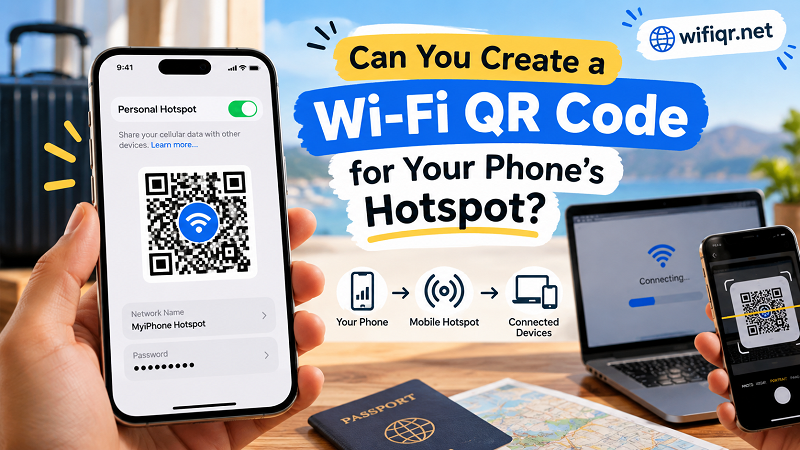
A Mobile Hotspot Is Wi-Fi, but It Isn't a Home Router
Your phone's mobile hotspot and your home Wi-Fi router can both provide wireless internet access, but they get that internet from different places.
A home router typically connects to a broadband service, while a mobile hotspot uses your phone's cellular data connection to provide internet access to nearby devices. Your phone then acts as a small wireless access point, allowing compatible devices to join its network.
That distinction matters when you're creating a QR code. A Wi-Fi QR code generally contains network information, such as the network name (SSID), password, and security type. When a compatible device scans the code, it can use those details to attempt a connection.
The QR code doesn't care whether the network comes from a home router, a travel router, or a phone hotspot. What matters is whether the encoded details match the network and whether the receiving device can use them.
However, a mobile hotspot can have a few extra quirks. Your phone might turn the hotspot off automatically, limit the number of connected devices, or change its network settings. Unlike a printed QR code, those settings can change while the code stays exactly the same.
What a Hotspot QR Code Can—and Can't—Do
Think of a QR code as a shortcut for sharing information, not a remote control for your phone.
When configured correctly, a Wi-Fi QR code can help another compatible device access the credentials needed to join your hotspot. This can save time when you're sharing internet access with a friend, connecting a second device, or helping someone get online while traveling.
But there are limits.
- It won't turn on your hotspot automatically. Unless your device supports a separate mechanism for controlling hotspot settings, someone still needs to enable the hotspot.
- It won't create an internet connection from nothing. Your phone needs an active cellular connection or another suitable internet source.
- It won't bypass your hotspot password. If the network is secured, the correct credentials are still required.
- It won't guarantee compatibility. Some devices recognize Wi-Fi QR codes, while others may require you to enter network information manually.
- It won't update itself when your settings change. If you change your hotspot name or password, an existing QR code may no longer work.
That last point is easy to overlook. A QR code is only as useful as the information it contains. If your phone's hotspot settings change, the code needs to reflect those changes too.
The Right Approach Depends on Your Phone
Android and iPhone devices handle hotspot sharing differently. Before creating a QR code, check what your particular phone can do.
Android: Check for Built-In Hotspot Sharing
Some Android phones offer a built-in QR code feature for sharing a Wi-Fi network or mobile hotspot. The exact options depend on the manufacturer, Android version, and device software.
Start by opening Settings and finding the Hotspot or Mobile Hotspot section. Look for a sharing option or a QR code icon. If your phone provides one, follow the on-screen instructions to display the code.
If there's no QR option, don't assume your phone is missing an essential feature. You can check the manufacturer's documentation or use another method to create a code from the hotspot's network details.
Before sharing, verify the hotspot's network name, password, and security settings. Those are the details that determine whether the QR code matches the network you want someone to join.
iPhone: Share the Hotspot Password or Use a QR Code
iPhones support Personal Hotspot, allowing other devices to connect using the hotspot's network information. However, iOS doesn't provide a universal built-in QR code button for Personal Hotspot across all iPhone models and software versions.
To check your settings, open Settings → Personal Hotspot or look for Personal Hotspot within Cellular settings, depending on your iOS version. Confirm that the hotspot is enabled and review the Wi-Fi password.
For Apple-to-Apple sharing, Apple's built-in Personal Hotspot and Wi-Fi sharing features may be more convenient than creating a QR code. For other devices, you can share the password directly or create a QR code containing the correct network details.
Keep in mind that a code generated from your iPhone's hotspot information won't automatically enable Personal Hotspot. The receiving device must also support the QR format, and your iPhone must be ready to accept the connection.
What About Laptops and Other Devices?
Not every device can scan a QR code and connect to Wi-Fi automatically. Many phones can recognize standard Wi-Fi QR codes through their camera or a compatible scanning feature, but laptop support varies by operating system and software.
If a laptop can't connect by scanning, enter the hotspot's network name and password through its Wi-Fi settings. It's not as flashy, but it gets the job done.
The important distinction is between reading a QR code and using its contents to join a network. A device might be able to decode the information without supporting automatic Wi-Fi connection.
When You Need a Downloadable Hotspot QR Code
A built-in sharing feature is convenient, but it isn't always the best fit. Maybe you want to display a QR code on a second screen, send it to a colleague, or keep a copy ready for a temporary setup.
In that case, a wifi qr code generator can help you turn your hotspot's connection details into a scannable code. The key is to enter the correct information rather than assuming that any Wi-Fi QR code will work with any network.
Before generating the code, check three things:
- Network name (SSID): Use the exact name shown in your phone's hotspot settings, including capitalization and special characters.
- Password: Enter the current hotspot password. A typo or an outdated password can prevent the receiving device from connecting.
- Security type: Select the security option that matches your hotspot. The QR code's format must be compatible with the network's actual configuration.
Once you've generated the code, test it with another device before relying on it. Ideally, use a device different from the one displaying or creating the QR code. Confirm that it recognizes the network information and can connect when the hotspot is active.
There's also a practical limitation worth remembering: if you change your hotspot password later, you'll need to update the QR code. If you plan to display it publicly or share it with several people, consider whether distributing your personal hotspot credentials is appropriate in the first place.
Why a Hotspot QR Code May Stop Working as Expected
A QR code can be perfectly readable and still fail to get someone online. That's because scanning is only one part of the connection process.
The hotspot is switched off. The QR code can contain the right information, but the network isn't available until the phone enables its hotspot. Turn it on before testing the connection.
The network details have changed. If you renamed the hotspot or updated its password, an older code may point to the wrong credentials. Check the current settings and generate a replacement if necessary.
The receiving device doesn't support automatic Wi-Fi setup. Some devices display the information embedded in a code without automatically joining the network. Try connecting manually through the device's Wi-Fi settings.
The phone has reached a connection limit. Depending on the device and carrier configuration, a hotspot may restrict how many devices can connect at once. Disconnect an unused device or check the hotspot settings.
The hotspot connects, but the internet doesn't work. A successful Wi-Fi connection doesn't guarantee working cellular data. Check your mobile signal, data allowance, carrier restrictions, and whether the phone itself can access the internet.
These situations might look similar from the outside, but they require different solutions. First establish whether the receiving device can read the code, then whether it can join the network, and finally whether the hotspot can provide internet access.
Is a Hotspot QR Code a Good Idea for Everyday Sharing?
For occasional sharing, absolutely. A QR code can reduce the friction of connecting a friend's phone, helping a colleague get online, or sharing temporary internet access while traveling. It's especially handy when the password is long or difficult to communicate verbally.
It's less convenient when your hotspot settings change frequently or you need to manage many devices. A printed code can quickly become outdated, and a code displayed on another screen may expose your network credentials to anyone who can scan it.
There's also the mobile data question. Every connected device may consume data from your phone's plan, and activities such as video streaming or large downloads can use it quickly. A QR code makes connecting easier; it doesn't make data usage disappear.
For short-term sharing, keep the code accessible only to the people who need it. Turn off the hotspot when you're finished, and update your credentials if you believe they've been shared too widely.
Make Hotspot Sharing Easier, Without Expecting QR to Do Everything
A Wi-Fi QR code can make mobile hotspot sharing faster, but it works best when you understand its role. It carries network information; your phone still handles the hotspot, your cellular connection supplies the internet, and the receiving device determines how it joins the network.
Check your phone's sharing options first, keep the network details accurate, and test the code before handing it to someone else. With those basics covered, you can spend less time spelling out passwords and more time getting on with whatever brought you online in the first place.