Wi-Fi QR Codes and Devices That Can't Scan Them
Wi-Fi QR codes don't work the same way on every device. Learn how to connect smart TVs, printers, game consoles, and smart home devices.
Your phone connects to Wi-Fi in seconds. You scan a QR code, tap the notification, and you're online. Easy.
- First, Understand What Your Wi-Fi QR Code Actually Does
- One Wi-Fi Network, Different Devices, Different Rules
- Smart TVs: Let the Remote Do Its Job
- Wireless Printers: Follow the Setup Process, Not Just the QR Code
- Game Consoles: Keep the Connection Simple
- Smart Home Devices: Check the Fine Print
- Laptops and Desktop Computers: Use the Built-In Wi-Fi Menu
- Choose the Fastest Connection Method for Your Device
- Three Shortcuts That Can Waste More Time Than They Save
- Make Your Wi-Fi Details Useful Beyond One Scan
- The Goal Is a Connected Device, Not a Perfect QR-Code Demo
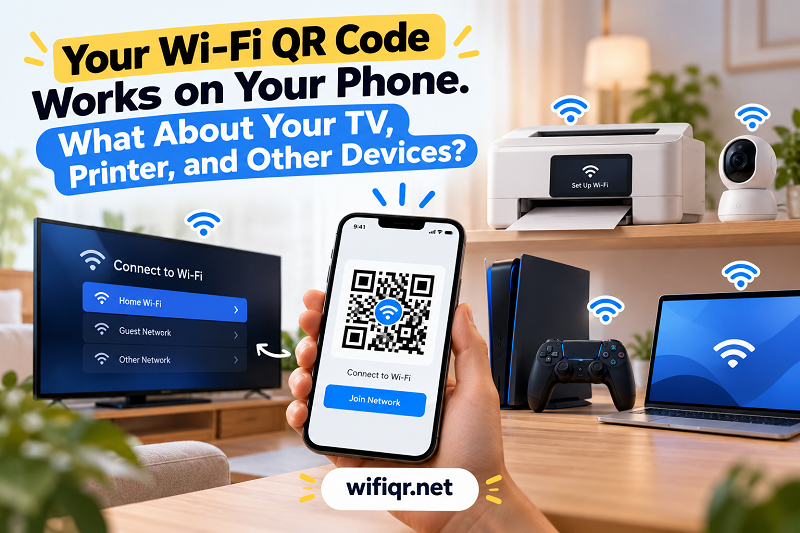
Then you try connecting your smart TV. The printer asks for a password. Your game console opens a keyboard that makes entering a long network key feel like a punishment. Suddenly, that supposedly effortless Wi-Fi setup doesn't look so effortless anymore.
Here's the catch: a Wi-Fi QR code can make sharing network details easier, but it can't give every device the ability to scan or interpret those details. Some devices can read a QR code directly. Others need you to enter the network information manually or use a setup process provided by the manufacturer.
The good news? You don't need to start over or create a new QR code every time another device joins the network. You just need to know which connection method makes sense for the device in front of you.
First, Understand What Your Wi-Fi QR Code Actually Does
A Wi-Fi QR code typically encodes information such as the network name (SSID), security type, and password. When a compatible device scans it, the device can use that information to help establish a connection.
Think of the QR code as a compact set of network instructions, not a universal wireless remote. It doesn't change your router's capabilities, install missing software, or make an incompatible device suddenly understand QR codes.
There are three separate steps involved:
- Reading the code: The device must have a camera or another supported method for interpreting the QR format.
- Using the network details: The device must be able to process the information and apply it to its Wi-Fi settings.
- Joining the network: The device must support the network's configuration and successfully authenticate with the router.
A device can fail at any one of these stages. That's why the smartest approach is to identify the device's actual capabilities before deciding what to do next.
One Wi-Fi Network, Different Devices, Different Rules
Not every device handles wireless setup in the same way. Instead of trying to force every gadget to use a QR code, choose the connection method that fits its interface and supported features.
Smart TVs: Let the Remote Do Its Job
Most smart TVs provide network settings where you can select a Wi-Fi network and enter its password using the remote. Some newer models may support QR-based setup or other assisted connection methods, but you shouldn't assume that feature exists on every television.
If your TV doesn't offer QR scanning, open its network settings, select the correct wireless network, and enter the password manually. If typing is tedious, check whether the manufacturer provides a supported mobile app or another setup option.
One detail worth checking is the network band. Some TVs support both 2.4 GHz and 5 GHz Wi-Fi, while others have more limited compatibility. A perfectly valid QR code won't solve a mismatch between the network and the TV's supported wireless capabilities.
Wireless Printers: Follow the Setup Process, Not Just the QR Code
Printers can be surprisingly particular about network configuration. Depending on the model, you might configure Wi-Fi through the printer's control panel, a companion app, a computer, or a dedicated wireless setup mode.
If the printer doesn't recognize QR codes, use the manufacturer's recommended setup process. You may need to select your network and enter the password through the printer interface, or temporarily connect through another supported configuration method.
Also, distinguish between connecting the printer to Wi-Fi and making it available to your computer or phone. Joining the wireless network is only one part of the process; device discovery, driver support, and printing permissions can affect what happens next.
Game Consoles: Keep the Connection Simple
Game consoles generally provide their own network settings. You select a wireless network, enter its password if required, and let the console test the connection.
If your console doesn't support Wi-Fi QR scanning, there's little benefit in repeatedly presenting the same code to it. Use the console's built-in setup instead. A phone that connects successfully can still be useful for viewing the network information you need, provided you access it through a method supported by your phone and network.
For consoles that support multiple wireless bands, selecting a compatible network can matter more than how the password was shared. If setup fails, check the console's network requirements and router configuration before changing anything else.
Smart Home Devices: Check the Fine Print
Smart plugs, bulbs, cameras, sensors, and other connected gadgets often use a companion app to guide the initial setup. Some require your phone to connect to a specific wireless band or remain on the same network during pairing.
A device that only supports 2.4 GHz Wi-Fi may not connect to a 5 GHz-only network, even when the password is correct. Other devices may require a particular security mode or a temporary setup connection.
Follow the manufacturer's instructions rather than assuming the device can scan a standard Wi-Fi QR code. If the setup app asks you to enter your network credentials, that's usually the intended workflow—not a sign that your QR code is broken.
Laptops and Desktop Computers: Use the Built-In Wi-Fi Menu
Computers already have a straightforward way to join wireless networks. Open the Wi-Fi menu, select the network, and enter the password if prompted. Some operating systems and applications also support QR-based connection workflows, but availability depends on the device, software version, and scanning capabilities.
If you're setting up a computer for someone else, sharing the network name and password through an appropriate channel may be faster than trying to introduce a QR-based process the computer doesn't support.
The objective isn't to make every device use the same method. It's to get each device connected securely with the least unnecessary effort.
Choose the Fastest Connection Method for Your Device
Use this quick decision guide before spending time troubleshooting the wrong thing.
| What you're dealing with | Best place to start |
|---|---|
| A device that supports Wi-Fi QR scanning | Use its built-in scanning or connection feature |
| A TV or console without QR support | Open network settings and enter the password |
| A wireless printer | Follow its official wireless setup instructions |
| A smart home gadget | Use the manufacturer's companion app and check band requirements |
| A laptop or desktop | Use the operating system's Wi-Fi interface |
| A device that rejects the correct credentials | Check network compatibility, security settings, and the device's instructions |
If a connection fails, narrow down the cause before making changes. Is the device unable to read the QR code? Does it fail to join the network? Or does it connect to Wi-Fi but cannot access the Internet? Those are different problems, and each calls for a different solution.
Three Shortcuts That Can Waste More Time Than They Save
Mistake #1: Assuming every device can scan a Wi-Fi QR code. A QR code is useful only when the receiving device has a compatible way to interpret it. If the feature isn't supported, switch to the device's normal setup process instead of repeatedly trying to scan.
Mistake #2: Assuming every device supports the same Wi-Fi band. A phone may connect to a network that an older printer or smart-home device cannot use. Check the device's specifications and the router's available network options before blaming the password.
Mistake #3: Changing the password before identifying the problem. Updating your Wi-Fi credentials can force existing devices to reconnect and may create more work than necessary. First, confirm that the network name, password, security configuration, and device requirements are compatible. Change network settings only when there's a clear reason to do so.
Make Your Wi-Fi Details Useful Beyond One Scan
A little preparation can make connecting new devices much easier. Keep your network name and password available in a secure place, and know which devices require a dedicated setup app or manual configuration. If you manage multiple wireless networks, label them clearly so you don't accidentally connect a device to a guest network or the wrong frequency band.
For guests and compatible phones, a wifi qr code can make sharing network access far more convenient. Instead of asking visitors to type a complicated password, you can give them a simple way to join the network when their device supports the format.
Remember that a QR code containing Wi-Fi credentials should be treated like the credentials themselves. Anyone who can access the code may be able to retrieve or use the network information, depending on the device and security setup. Place printed codes thoughtfully, especially if they provide access to a private network.
For a home with many connected gadgets, the most practical setup is a combination of convenient sharing and device-specific configuration. Let phones use QR codes when supported, let TVs and consoles use their built-in network menus, and let printers and smart-home devices follow their intended setup procedures.
The Goal Is a Connected Device, Not a Perfect QR-Code Demo
Wi-Fi QR codes are great at removing friction from compatible connection workflows. But a smart home rarely consists of identical devices with identical interfaces, and that's perfectly fine.
Once you understand the difference between sharing network information and establishing a connection, troubleshooting becomes much more straightforward. Use QR scanning where it works, switch to the supported setup method where it doesn't, and check compatibility before changing your network configuration.
The best Wi-Fi setup isn't the one where every device uses the same trick. It's the one where every device gets online reliably, securely, and without turning a simple connection into an afternoon project.