Reveal a Wi-Fi Password From a QR Code Safely
Learn how to reveal a Wi-Fi password from a QR code safely, avoid risky scanner apps, and protect your network details from unwanted exposure.
You scan a Wi-Fi QR code at a coffee shop, your phone connects instantly, and everything seems perfect—until you need the password for your laptop. Suddenly, that convenient little square becomes a puzzle. Can you reveal the password hidden inside it? Yes, in many cases. But before you install a random scanner app or upload a screenshot to an unfamiliar website, take a moment to think about what you're exposing. Your Wi-Fi password is more than a string of characters; it can be the key to a private network. The goal isn't simply to reveal it. It's to do so without creating a new security problem.
- What Does a Wi-Fi QR Code Actually Reveal?
- Before You Install a QR Scanner, Check These Three Things
- How to Inspect a Wi-Fi QR Code Without Exposing Your Password
- What If the Scanner Shows the Network Name but Not the Password?
- Four Wi-Fi QR Security Mistakes Worth Avoiding
- A Quick Privacy Check Before You Scan
- Frequently Asked Questions
- Can a Wi-Fi QR code expose my password?
- Is it safe to use an online Wi-Fi QR decoder?
- Why does my phone connect without showing the password?
- Can I check a Wi-Fi QR code without connecting to the network?
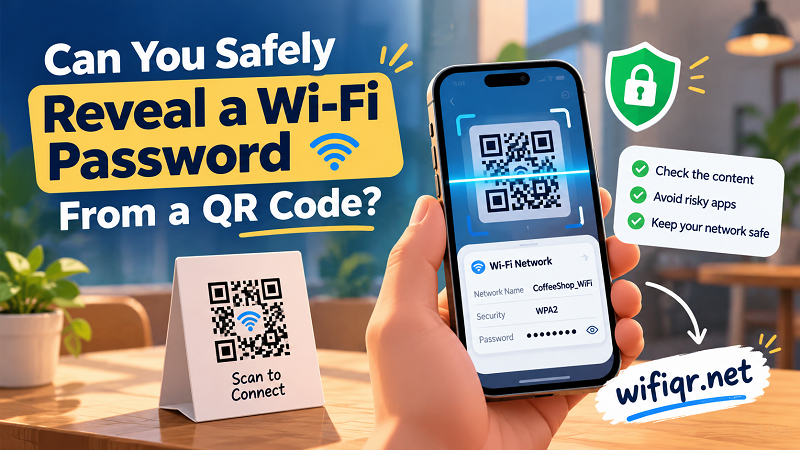
What Does a Wi-Fi QR Code Actually Reveal?
A standard Wi-Fi QR code often contains structured information such as the network name (SSID), security type, password, and connection settings. When a compatible device scans the code, it can interpret those details and use them to connect to the network.
Here's the catch: connecting to a network and displaying its password are two different things. Your phone may read the encoded information and establish a connection without presenting every field in a readable format. The behavior depends on your device, operating system, camera app, and the type of QR code.
Some codes also have no password to reveal. An open network may not require one, while an enterprise network might rely on credentials or authentication methods that a basic Wi-Fi QR code cannot fully represent. If the code is damaged, incomplete, or generated incorrectly, a scanner may also return an error or partial information.
So, if your phone connects but doesn't show the password, don't immediately assume the code is broken. Your device may simply be prioritizing a quick connection over displaying the underlying data.
Before You Install a QR Scanner, Check These Three Things
Installing another app should be your backup plan, not your first move. Start with the tools already available on your device and consider these three checks before handing a third-party scanner access to your camera or files.
1. Does your built-in camera do the job? Many modern smartphones can recognize Wi-Fi QR codes directly. Depending on the device, you may see a connection prompt, network details, or a sharing option. If your only goal is to join the network, the built-in camera may be all you need.
2. Does the tool process your image locally? A QR scanner that processes images entirely on your device can reduce the risk of exposing the code to an external service. If a website requires you to upload a screenshot, check whether it explains how the image is processed, whether it is stored, and when it is deleted. A privacy policy is useful, but clear technical information about local processing is even better.
3. Are its permissions reasonable? A basic QR scanner generally shouldn't need access to your contacts, microphone, or location just to decode an image. Some permissions may have legitimate uses in specific features, but unexplained requests deserve scrutiny. Download apps from reputable sources and check their developer information before installing them.
How to Inspect a Wi-Fi QR Code Without Exposing Your Password
The safest approach depends on what you're trying to accomplish. If you simply want internet access, scan the code using your phone's built-in camera or Wi-Fi settings. If you need the actual password for another device, first check whether your phone offers a built-in way to view or share saved Wi-Fi credentials. Some devices require authentication before revealing them, and the available options vary by operating system and version.
If those options aren't available, you can consider a trusted QR decoder. For a more targeted search, the phrase wifi scan password show can help you explore relevant tools and instructions. Before using any online decoder, verify whether it processes the image locally or sends it to a server. Don't assume that a tool is private simply because it is free or doesn't require an account.
Once the code has been decoded, review the output before copying or sharing it. A Wi-Fi QR code may contain a network name, password, and other connection parameters. Treat these details as sensitive, particularly when the network belongs to your home, workplace, or another private location. Avoid posting screenshots in public forums, sending them to large group chats, or storing them in shared folders that other people can access.
One important distinction: decoding a QR code doesn't automatically make the information safe to share. A tool can perform its job correctly while still creating privacy concerns through unnecessary uploads, analytics, or data retention. The way the tool handles your information matters just as much as the decoding result.
What If the Scanner Shows the Network Name but Not the Password?
Seeing the network name without a readable password can be frustrating, but there are several possible explanations. Your scanner may display only a summary, your phone may be handling the connection automatically, or the QR code may use a format that the tool doesn't fully support.
Try these options in order:
- Check your phone's Wi-Fi settings. Some Android devices offer a sharing function that displays a QR code or, depending on the version, the password itself. On supported Apple devices, you may be able to view a saved Wi-Fi password through the system's Wi-Fi settings after authenticating.
- Use a decoder that supports Wi-Fi QR formats. A generic QR reader may recognize the code without interpreting all its connection fields. Choose a reputable tool that clearly explains its supported formats.
- Ask the network owner. If the network belongs to a business, hotel, office, or someone else's home, requesting the password directly is often the simplest option.
- Check whether the network uses a different authentication method. Enterprise Wi-Fi and some managed networks may require individual credentials or certificates rather than a single shared password.
Avoid repeatedly scanning the same code with random apps. If one tool doesn't support the format, switching to another reputable method is more sensible than installing five unfamiliar applications and granting them all access to your files.
Four Wi-Fi QR Security Mistakes Worth Avoiding
Mistake #1: Treating a printed QR code as harmless. A code displayed on a wall or menu can contain credentials that remain usable until the network password or configuration changes. If you're responsible for the network, consider who can access the code and whether it should be publicly displayed.
Mistake #2: Uploading screenshots without checking the privacy policy. A screenshot may reveal more than the QR code itself, including notifications, account details, or other information around the image. Crop unnecessary content before processing an image, and avoid uploading sensitive codes to services that don't explain their data practices.
Mistake #3: Assuming every QR code is a Wi-Fi code. QR codes can also open websites, download files, or initiate other actions. Check the destination or decoded content before proceeding, especially when the code comes from an unfamiliar source.
Mistake #4: Forgetting that sharing a password grants access. Sending a Wi-Fi password to a guest or posting a connection QR publicly may allow more people to join than you intended. For a home network, consider a guest network. For a business, follow the organization's access policies and rotate credentials when necessary.
A Quick Privacy Check Before You Scan
You don't need to become a cybersecurity expert to handle Wi-Fi QR codes responsibly. You just need a simple routine: identify where the code came from, use a trusted scanner, check what information the code contains, and avoid sharing the decoded credentials unnecessarily. If the code belongs to someone else, respect their network access rules rather than trying to bypass them.
If you're creating your own Wi-Fi QR code for a home, office, café, or guest area, keep the same principle in mind. Make connecting easy, but decide carefully who should have access to the network. A well-designed QR code improves convenience; sensible password management keeps that convenience from becoming a security headache.
Frequently Asked Questions
Can a Wi-Fi QR code expose my password?
Yes. If the QR code contains a conventional Wi-Fi configuration with a password, a compatible decoder may be able to extract that password. Anyone who can access the code may be able to read its contents, so protect it accordingly.
Is it safe to use an online Wi-Fi QR decoder?
It depends on how the service works. A decoder that processes the image locally avoids sending the image to a remote server. If the service uploads images, review its privacy and retention policies before using it with sensitive network credentials.
Why does my phone connect without showing the password?
Your device may interpret the QR code and connect automatically without displaying every encoded field. Check your operating system's Wi-Fi settings or supported password-sharing features if you need to view the password.
Can I check a Wi-Fi QR code without connecting to the network?
Yes, if you use a QR decoder that can interpret the Wi-Fi format. Decoding the code and joining the network are separate actions. Choose a trusted method and remember that the decoded result may contain sensitive information.
Final takeaway: A Wi-Fi QR code can save you from typing a long password, but convenience shouldn't come at the expense of privacy. Start with built-in device features, use trustworthy decoding tools when needed, and treat every revealed network credential with care.