Why Wi-Fi QR Codes Fail on Company Networks
A Wi-Fi QR code works at home but fails at work? Learn how enterprise authentication differs and which Wi-Fi sharing methods actually work.
Sharing Wi-Fi at home is usually effortless. Create a QR code, let someone scan it, and they can connect without typing a password. But bring that same approach into an office, university, or corporate environment, and things can get complicated quickly. A phone scans the code, recognizes the network information, and still refuses to connect. Frustrating? Absolutely. But the problem might have nothing to do with the QR code itself.
- A Company Wi-Fi Network Isn't Always Just a Password
- What a Standard Wi-Fi QR Code Can—and Can't—Do
- Three Connection Problems That Can Look Almost Identical
- Which Wi-Fi Sharing Method Fits Your Organization?
- Before Creating Another QR Code, Check These Details
- Make Wi-Fi Access Easier Without Fighting Network Security
The real issue may be how the network handles authentication. Not every Wi-Fi network works like the one in your living room, and understanding the difference can save you from generating code after code without fixing anything.
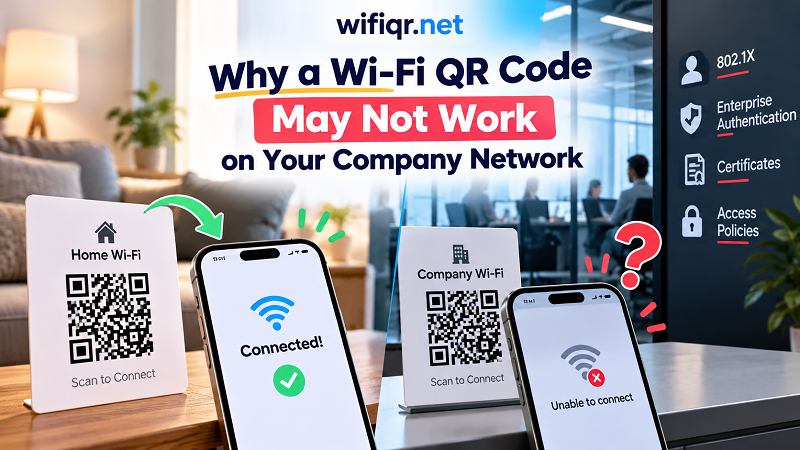
A Company Wi-Fi Network Isn't Always Just a Password
Most home Wi-Fi networks use a Personal security mode. Everyone connects with the same shared password, making access relatively easy to distribute. A standard Wi-Fi QR code can encode the network name, security type, and password so compatible devices can attempt to connect automatically.
Business networks often operate differently. Many organizations use WPA2-Enterprise or WPA3-Enterprise with IEEE 802.1X authentication. Instead of relying on one shared password, these networks may require individual usernames, separate credentials, a specific authentication method, or a trusted digital certificate.
That changes the entire connection process. A QR code containing a network name and shared password cannot automatically supply every credential or configuration an enterprise network requires. Even if the code is perfectly generated, the device may still need additional information or an approved configuration profile before it can join.
What a Standard Wi-Fi QR Code Can—and Can't—Do
Think of a Wi-Fi QR code as a shortcut for delivering connection information, not a magic key that unlocks every wireless network. Its job is to make supported network details easier to share and enter.
If you want to share a wifi password as qr code, a conventional QR format can be a practical solution for a compatible network using a shared password. Guests can scan the code instead of typing a long combination of letters, numbers, and symbols. That reduces typing errors and makes everyday access much smoother.
However, QR codes do not eliminate the network's security requirements. Enterprise Wi-Fi may require an identity, an anonymous identity, an EAP method, a certificate, or other settings that a basic Wi-Fi QR format does not fully represent. Device support also varies: a phone's camera may recognize a QR code without being able to configure every required network parameter.
The distinction matters because reading a QR code and successfully authenticating with a network are two different things. The first confirms that the device can interpret the encoded information. The second depends on whether the information, device configuration, and network security requirements all match.
Three Connection Problems That Can Look Almost Identical
When someone says, "The office Wi-Fi QR code doesn't work," that description is too vague to identify the cause. Several different problems can produce the same frustrating experience.
1. The QR code contains incorrect network information. The SSID might be misspelled, the password could be outdated, or the selected security type might not match the router's configuration. In this situation, checking the original network settings and generating a corrected code may solve the problem.
2. The network requires enterprise authentication. The device may need an individual username and password, a supported EAP configuration, or a certificate issued or approved by the organization. Recreating a basic QR code won't provide missing authentication settings. The appropriate next step is to ask the IT team for the approved connection instructions or configuration profile.
3. Authentication succeeds, but access is still restricted. Some organizations separate guest traffic from internal resources, enforce device policies, or require users to complete a captive portal login. A device may join the wireless network but still be unable to access the internet or certain services. In that case, the problem lies beyond the QR code itself.
Identifying which situation applies is much more useful than repeatedly scanning the same code, resetting network settings, or changing passwords without evidence.
Which Wi-Fi Sharing Method Fits Your Organization?
The best solution depends on the network's security model, the devices being connected, and the level of control the organization needs.
| Network environment | Practical sharing method |
|---|---|
| Home or small office with a shared password | A standard Wi-Fi QR code |
| Guest network with a shared password | A QR code, provided the devices and security settings are compatible |
| Enterprise network using 802.1X | An IT-approved configuration profile or supported onboarding process |
| Company-owned devices managed centrally | Network configuration distributed through mobile device management (MDM) |
| Guest Wi-Fi with a captive portal | A QR code to help users find or join the network, followed by the required login process |
For a small business that uses a conventional shared-password network, a QR code can remove an unnecessary step from the guest experience. For a larger organization, the priority is different: making access convenient without weakening identity verification or device security.
IT administrators should also consider how credentials are distributed. A QR code containing a shared password can be copied, photographed, or forwarded. If that password grants access to sensitive internal resources, broad distribution may create avoidable security risks. A separate guest network with appropriate access restrictions is often a better choice.
Before Creating Another QR Code, Check These Details
Start by identifying the network's security mode. If it uses Personal authentication, verify the exact SSID, password, and security settings before generating another code. Test the code on a compatible device and confirm that the router or access point is broadcasting the expected network.
If the network uses Enterprise authentication, stop treating it like a typical home connection. Ask the IT administrator which authentication method is required, whether a certificate must be installed, and whether the organization provides a configuration profile. Also check whether the device operating system supports the required settings.
Finally, determine where the connection process fails. Does the camera fail to recognize the code? Does the device recognize the network but reject the credentials? Does it connect to Wi-Fi but fail to reach the internet? Each outcome points toward a different cause, and that distinction makes troubleshooting considerably faster.
Make Wi-Fi Access Easier Without Fighting Network Security
Wi-Fi QR codes are excellent for reducing friction, but they work best when the network configuration fits what the code can communicate. For home networks, cafés, small offices, and many guest networks, scanning a code can turn an annoying password-entry task into a quick connection.
Enterprise networks have different requirements, and that is not a flaw. Individual authentication, certificates, and access policies exist to protect users and organizational resources. The goal is not to bypass those safeguards but to choose a sharing method that works with them.
If your network uses a compatible shared-password configuration, a Wi-Fi QR generator can make access simpler for employees and visitors. If it relies on enterprise authentication, use the configuration and onboarding process approved by your IT team. Get the method right, and you can make connecting easier without compromising the security that keeps the network running.