One Wi-Fi QR Code for Multiple Routers? Mesh Wi-Fi Explained
Learn when one Wi-Fi QR code works across multiple routers, mesh nodes, and access points—and when separate network QR codes make more sense.
Imagine upgrading your home Wi-Fi with a mesh system. Suddenly, you've got a main router, two satellite nodes, and a much stronger signal in every room. Great upgrade. But now there's a new question: do you need a separate Wi-Fi QR code for every device broadcasting your network?
- The QR Code Doesn't Care How Many Routers You Own
- Three Network Setups, Three Different Answers
- 1. One SSID and Password Across a Mesh System
- 2. Separate Wi-Fi Names for Different Access Points
- 3. Main Wi-Fi and Guest Wi-Fi Are Different Networks
- The Decision Tree: Keep Your Existing QR or Make a New One?
- Four Real-World Setups That Make This Easier to Understand
- What a Wi-Fi QR Code Cannot Decide for You
- Create the QR Code for the Network You Actually Want to Share
Short answer: not necessarily. The number of routers or access points in your home doesn't automatically determine how many QR codes you need. What matters is how your wireless networks are configured, which credentials they use, and which network you actually want people to join.
Let's break down the differences without turning your networking upgrade into a weekend-long research project.
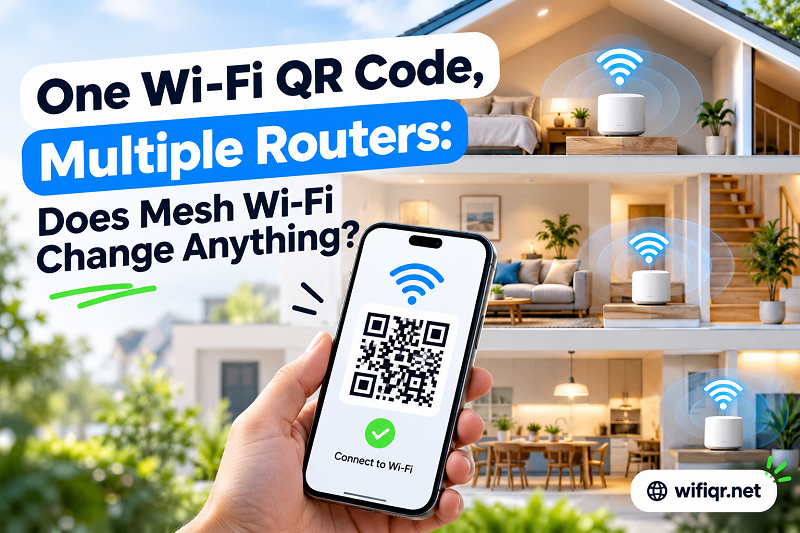
The QR Code Doesn't Care How Many Routers You Own
A standard Wi-Fi QR code stores the connection details needed to join a wireless network. Depending on the format, these details typically include the network name (SSID), security type, and password. When someone scans the code with a compatible device, the device uses that information to attempt a connection.
Here's the important distinction: a router is a piece of hardware; an SSID identifies a wireless network. One network can be broadcast by multiple access points, while a single router can support several separate wireless networks.
That means adding more hardware doesn't automatically mean creating more QR codes. If your network credentials remain the same, the existing code may continue to work just as it did before. If you introduce a separate network with different credentials, however, you'll need to account for those differences.
Think of a Wi-Fi QR code as a shortcut to a particular set of connection details—not a label for a specific router sitting in a corner.
Three Network Setups, Three Different Answers
1. One SSID and Password Across a Mesh System
A mesh Wi-Fi system typically uses multiple nodes to extend wireless coverage throughout a home or building. In many common configurations, these nodes broadcast the same network name and use the same password, allowing compatible devices to move between coverage areas without manually selecting a different network.
Suppose your home network is called HomeNetwork, and every mesh node uses the same credentials. You don't need a different QR code simply because the kitchen, bedroom, and upstairs hallway have separate nodes. A code containing the correct network details can generally be used throughout the property.
There is one caveat: the QR code doesn't control which node a device connects to. Signal strength, device behavior, roaming support, and network configuration influence that decision. The code helps the device join the network; the mesh system handles the wireless coverage.
2. Separate Wi-Fi Names for Different Access Points
Not every multi-access-point setup operates as one unified network. Some homes, offices, and small businesses maintain different SSIDs for different areas, purposes, or equipment.
For example, a small office might use Office-Front for its reception area and Office-Workshop for a separate workspace. If these networks have different credentials, a QR code for the first network won't automatically connect someone to the second.
In this situation, separate QR codes make sense when people need access to both networks. Each code should represent the correct SSID and its corresponding security settings.
The same principle applies if the networks happen to share a password but have different names. The network name is part of the connection information, so matching passwords alone doesn't make the codes interchangeable.
3. Main Wi-Fi and Guest Wi-Fi Are Different Networks
This is where things can get confusing. Your router may broadcast both a private network and a guest network, even though everything comes from the same physical device.
Imagine your main network is SmithHome, while visitors connect to SmithHome-Guest. The guest network might have its own password, access restrictions, or isolation settings. A QR code for your private network won't direct visitors to the guest network instead.
If your goal is to let guests connect without exposing your main network credentials, create a separate code for the guest network. That gives visitors a convenient way to connect while preserving the distinction between the two networks.
The same idea applies to dedicated IoT networks used for smart plugs, cameras, and other connected devices. If a network has different connection details or access permissions, treat it as a separate destination.
The Decision Tree: Keep Your Existing QR or Make a New One?
Before printing new codes or replacing the one on your refrigerator, check what actually changed. Use this quick decision process.
Scenario A: You added mesh nodes but kept the same network name and password.
Your existing QR code will generally remain valid, provided the network's security configuration and credentials haven't changed. You don't need a new code merely because coverage now comes from several devices.
Scenario B: You created a new SSID for a different room, floor, or purpose.
Check whether that network has its own credentials. If you want people to connect to the new SSID, generate a code for that specific network rather than reusing a code that points to another one.
Scenario C: You enabled a guest network.
Create a dedicated QR code using the guest network's actual connection details. This is especially useful for homes, cafés, coworking spaces, and offices where visitors shouldn't automatically receive access to the private network.
Scenario D: You changed the Wi-Fi password, network name, or security settings.
Review the information encoded in the existing QR code. If the code contains outdated credentials or no longer matches the network's security configuration, generate a replacement and update any printed copies or displayed signs.
The rule is straightforward: match the QR code to the network configuration, not to the number of wireless devices.
Four Real-World Setups That Make This Easier to Understand
Different environments have different networking needs. Here's how the same principle applies across common setups.
| Setup | Recommended QR code approach | Why |
|---|---|---|
| Two-story home with three mesh nodes | Usually one code for the shared network | Multiple nodes can broadcast the same SSID and credentials. |
| Office with several access points | One code per distinct network you want to share | Multiple access points may serve one network or several separate networks. |
| Café with private and guest Wi-Fi | A separate code for the guest network | Visitors should connect to the intended network, not automatically receive private credentials. |
| Home with separate main and IoT networks | Separate codes when access to both networks is needed | Different SSIDs or credentials represent different connection destinations. |
These are typical scenarios, not universal rules for every networking product. Some systems use VLANs, multiple authentication methods, enterprise security, or managed access policies that require additional configuration. A standard Wi-Fi QR code may not support every authentication method or network setup.
When in doubt, check the SSID and security details configured on your router or access point before creating or distributing a code.
What a Wi-Fi QR Code Cannot Decide for You
QR codes make joining a network easier, but they don't replace the intelligence built into your networking equipment. Understanding that boundary prevents a lot of unnecessary troubleshooting.
A QR code cannot choose the best mesh node for a device, improve a weak wireless signal, configure roaming between access points, or repair an internet connection. It also doesn't create separate user permissions or guest isolation on its own. Those capabilities depend on the router, access points, and network settings.
There's another important consideration: a QR code containing a Wi-Fi password can be copied or photographed. Anyone who can scan it may be able to obtain access according to the network's authentication and access policies. Displaying a code publicly is therefore best suited to a network intended for visitors, such as a properly configured guest network.
For private networks, share codes selectively and update them whenever the underlying credentials change. If you replace the password, remember that every printed code containing the old password may need to be replaced as well.
Create the QR Code for the Network You Actually Want to Share
Once you've identified the right SSID and confirmed its security settings, you can create qr code for wifi using the connection details for that specific network. Choose the network you intend to share, enter its current credentials, and generate the code.
For a home mesh system, that might mean using one code for the network shared across all nodes. For a business with separate employee and guest networks, it could mean creating different codes for different audiences. The right setup depends on your network—not on how many routers you've purchased.
Before printing, test the code with a compatible device and confirm that it joins the intended network. If you've made a recent configuration change, verify the credentials again. A quick check now can save you from replacing signs or answering the same connection question a dozen times later.
The bottom line? Multiple routers don't automatically require multiple Wi-Fi QR codes. One shared network can often use one code, while distinct networks may need distinct codes. Get the network configuration right first, and the QR code becomes the easy part.