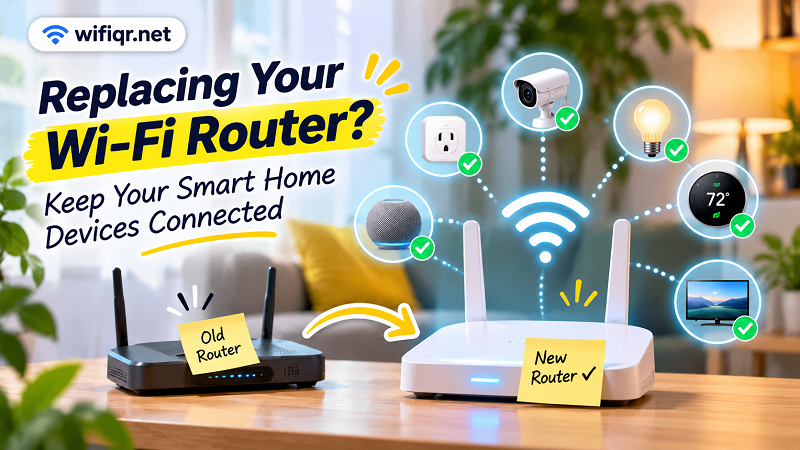
Replacing Your Wi-Fi Router? Keep Smart Home Devices Connected
Replacing your Wi-Fi router doesn't have to disconnect your smart home. Learn how to migrate your network and keep your devices connected.
Buying a new Wi-Fi router feels like a small victory. Faster speeds, better coverage, fewer dead zones, and hopefully no more buffering when you're trying to watch something in the bedroom. Sounds great, right?
- Your Smart Home Remembers More Than You Think
- The Simplest Fix: Keep Your Old Wi-Fi Name and Password
- Take Inventory Before Pulling the Plug
- The 2.4 GHz Problem Nobody Wants to Discover
- Should You Reuse Your Old Network or Start Fresh?
- Your Router Migration, Without the Guesswork
- When a Smart Device Refuses to Cooperate
- The Best Router Upgrade Is the One You Barely Notice
Then you plug it in.
Your phone connects. Your laptop works. You open a website, and everything looks promising. But your security camera is offline. The smart lights won't respond. Your robot vacuum suddenly acts like it has never seen your house before. Even the printer seems to have forgotten where it lives.
Welcome to the less glamorous side of upgrading your home network.
The problem isn't necessarily your new router. It's that every connected device in your home has its own way of remembering your Wi-Fi network. Change the network name or password, and suddenly dozens of gadgets may need attention.
The good news? You don't have to reconnect everything manually. With the right preparation, you can replace your router while keeping most of your smart home devices working as expected.
Your Smart Home Remembers More Than You Think
When you connect a device to Wi-Fi, it typically saves the network name (SSID), password, and other connection settings. It uses that information to recognize and reconnect to the network later.
Your smart TV, wireless camera, smart speaker, thermostat, and connected appliances all depend on some form of saved network configuration.
Here's where replacing a router gets interesting.
Imagine your old network is called HomeNetwork, with a password you've been using for three years. Your new router arrives with a different default network name and password. Your phone connects because you enter the new credentials. Your smart devices, however, are still looking for the old network.
They don't automatically know that you've replaced the hardware. From their perspective, the familiar network has disappeared.
This explains why a router upgrade can affect so many unrelated devices at once. The gadgets themselves may be perfectly fine. They simply can't find the network information they previously relied on.
The Simplest Fix: Keep Your Old Wi-Fi Name and Password
Before spending hours reconnecting devices individually, consider a much easier option: configuring your new router with the same Wi-Fi name and password as your previous one.
For example:
| Setting | Previous router | New router |
|---|---|---|
| Network name | HomeNetwork | HomeNetwork |
| Wi-Fi password | MyOldWifiPassword | MyOldWifiPassword |
When the new router broadcasts the familiar network credentials, many devices can recognize the network and reconnect automatically.
It's one of the most useful shortcuts available when replacing home networking equipment, especially if you've accumulated smart devices over several years.
However, don't assume this trick guarantees a seamless transition. Your new router must still support the connection requirements of your devices. Security protocols, frequency bands, and other wireless settings can affect compatibility.
There are also situations where reusing the old credentials isn't ideal. Perhaps you're changing your password because of a security concern, or you want to separate smart home equipment from your personal devices.
The key is to make that decision before disconnecting your old router, not after half your house has gone offline.
Take Inventory Before Pulling the Plug
Here's a surprisingly common mistake: people assume they'll remember everything connected to their Wi-Fi.
They won't.
Most homeowners remember their phones, laptops, and televisions. But what about the smart plugs behind the sofa? The camera overlooking the garage? The wireless printer that gets used twice a month? Or the air purifier controlled through an app?
Those are the devices that tend to get forgotten until you actually need them.
Before replacing your router, open its administration page or companion app and review the connected-device list. Write down the devices you recognize and check their locations.
A simple inventory might look like this:
| Device | Location | Priority |
|---|---|---|
| Security cameras | Front door, backyard | High |
| Smart doorbell | Entrance | High |
| Smart thermostat | Living room | High |
| Smart TVs | Bedrooms, living room | Medium |
| Smart speakers | Multiple rooms | Medium |
| Smart plugs | Kitchen, bedroom | Low |
| Wireless printer | Home office | Low |
You don't need an elaborate spreadsheet. A note on your phone is perfectly fine.
While you're at it, save your existing Wi-Fi name and password somewhere accessible. If you've previously created a backup QR code but no longer remember the original credentials, this guide to wifi qr code to password explains how to recover network information from a saved Wi-Fi QR code.
Having those details available before the old router goes offline can save you a lot of unnecessary troubleshooting.
The 2.4 GHz Problem Nobody Wants to Discover
One of the most frustrating parts of upgrading a router is discovering that an older smart device refuses to connect, even when the password is correct.
Sometimes, the problem has nothing to do with your password. It's the Wi-Fi frequency band.
Many smart home products, particularly older models and low-power IoT devices, support 2.4 GHz Wi-Fi but don't support 5 GHz. Newer devices may support both, while some products have very specific setup requirements.
Your new router might combine both bands under one network name using a feature commonly called Smart Connect or band steering. This is convenient for modern phones and computers, but certain smart devices can struggle during their initial pairing process.
Before repeatedly entering your password, check the device specifications.
Pay particular attention to:
- Whether the device supports 2.4 GHz Wi-Fi.
- Whether the new router has 2.4 GHz enabled.
- Whether the security mode is compatible with the device.
- Whether the manufacturer's setup app requires your phone to use a particular band.
- Whether the device is attempting to connect to a guest network instead of your main network.
Some routers allow you to temporarily separate the 2.4 GHz and 5 GHz networks. This can help with devices that struggle during setup, although the exact procedure depends on your router.
And please, don't factory-reset every device just because the first connection attempt fails. Find the actual cause before reaching for that tiny reset button.
Should You Reuse Your Old Network or Start Fresh?
There are two practical ways to handle a router replacement. Neither is automatically better; the right choice depends on why you're upgrading.
Option 1: Reuse your existing network credentials
This is usually the most convenient approach when replacing faulty hardware, upgrading to a faster router, or improving coverage without changing your home network.
Configure the new router with your previous SSID and password. Once the new network is running, check whether your existing devices reconnect.
The biggest advantage is convenience. You may avoid manually updating connection details across dozens of devices.
The downside is that you're keeping your previous network identity and potentially carrying over old configuration habits. You'll still need to review security settings and make sure the new router supports your devices.
Option 2: Create a completely new Wi-Fi network
Sometimes starting fresh makes more sense. Perhaps you've changed your password for security reasons, moved into a new house, or decided to organize your smart home equipment into a separate network.
In this situation, create the new network and reconnect devices deliberately.
Start with essential equipment, such as cameras, doorbells, and thermostats. Move on to televisions, speakers, and everyday electronics. Leave less important devices until the end.
This requires more work, but it gives you an opportunity to clean up old connections and reorganize your network.
| Consideration | Reuse old credentials | Create a new network |
|---|---|---|
| Setup effort | Usually lower | Usually higher |
| Device reconnection | Often automatic | Usually manual |
| Network organization | Mostly unchanged | Opportunity to reorganize |
| Security changes | Requires separate review | Easier to establish new credentials |
| Best suited for | Straightforward router upgrades | Security changes or network restructuring |
One important detail: if your old router was compromised or you suspect someone unauthorized has access to your network, don't reuse the old password just for convenience. Security should come first.
Your Router Migration, Without the Guesswork
A smooth router replacement is mostly about doing things in the right order. Instead of unplugging the old equipment and figuring everything out afterward, divide the process into four stages.
Before disconnecting the old router
Record your current Wi-Fi name and password. Review the connected-device list and identify equipment that requires 2.4 GHz. If your router supports configuration backups, save one before making changes.
Also, check whether your internet provider requires specific settings on the replacement router. Some connections need additional configuration beyond simply entering a Wi-Fi password.
While setting up the new router
Configure the network name, password, and security options deliberately. Make sure the required wireless bands are enabled and that your older devices can use a compatible security mode.
If you're keeping your previous credentials, double-check the spelling and capitalization. A single character difference can prevent devices from recognizing the network.
Once the new network is running
Connect a phone or laptop first to confirm that the router has internet access. Then move on to essential smart home equipment.
Check security cameras, doorbells, thermostats, and other devices you depend on daily. Don't assume that a working internet connection means every device has successfully migrated.
After the main migration
Open the apps you actually use. View your camera feeds, test doorbell notifications, switch on smart lights, and run a few home automation routines.
A device appearing in the router's connected-device list doesn't necessarily mean its associated app or cloud service is functioning correctly.
Keep your old router available until you're confident the new setup is stable, particularly if you depend on connected security equipment or home automation.
When a Smart Device Refuses to Cooperate
Even with careful preparation, some devices will put up a fight. That's normal, especially with older smart home products.
The trick is to troubleshoot the actual problem instead of resetting everything.
The device can't find your network.
Check whether the correct Wi-Fi band is enabled, whether the device supports the router's security settings, and whether the network is being broadcast. Some products also have limitations involving Wi-Fi channels.
The password keeps getting rejected.
Verify the exact password, including capitalization and special characters. Check whether the device is still holding an outdated network configuration.
The device connects but appears offline in its app.
The Wi-Fi connection may be working while the manufacturer's cloud service, app session, or device registration is having trouble. Refresh the app and check the manufacturer's service status before changing router settings.
The setup process repeatedly fails.
Some products require a particular pairing sequence involving Bluetooth, a temporary device hotspot, or a dedicated mobile application. Follow the manufacturer's instructions rather than assuming every Wi-Fi device uses the same setup process.
Nothing seems to work.
A device-specific reset may eventually be necessary. Before doing that, check whether the manufacturer offers a way to update network credentials without deleting the entire device configuration.
A factory reset should be your last resort, especially for equipment with custom settings, schedules, or complicated automation routines.
The Best Router Upgrade Is the One You Barely Notice
A router upgrade should make your home network better, not turn you into a full-time IT technician.
The biggest difference between a smooth migration and a frustrating afternoon usually comes down to preparation. Know what's connected, understand which network settings matter, and decide whether you're keeping your existing credentials or starting fresh.
Remember that your smart home is an ecosystem, not just a collection of gadgets. Your camera, thermostat, smart speaker, and television may come from completely different manufacturers, but they share one important dependency: a working network.
Treat that network carefully during an upgrade, and you'll have a much better chance of enjoying your new router without spending the rest of the day reconnecting everything you own.