How to Find Your WiFi Password on Windows
Need your saved WiFi password on Windows? Learn how to find it in network settings, use Command Prompt, and troubleshoot when a QR code won't reveal the password.
Your phone connects to WiFi without a second thought, but now you need the password for your Windows laptop and all you have is a QR code. Classic tech headache. You might expect to scan the code and see the password appear like magic, but that isn't always how WiFi QR codes work. The good news? If Windows has saved the network credentials, you may be able to retrieve the password directly from your computer. If not, there are still a few practical ways to track it down.
- Can Windows Find a WiFi Password Saved on Your Computer?
- Method 1: Check Your WiFi Password in Windows Settings
- Method 2: Use Command Prompt to Find a Saved WiFi Password
- What If the Password Is Only Available as a QR Code?
- Why Your Saved WiFi Password May Not Appear
- When You Only Need to Share WiFi Access
- Keep Your WiFi Password Private
- Frequently Asked Questions
- Can I find a WiFi password on Windows without being connected?
- Can Command Prompt show a saved WiFi password?
- Why does my phone show a WiFi QR code but no password?
- Can I use a WiFi QR code to connect a Windows laptop?
Can Windows Find a WiFi Password Saved on Your Computer?
Yes, in many cases. Windows can store WiFi network profiles, including connection settings and, when available, saved security credentials. If you've connected your computer to a network before, you may be able to view its password through Windows settings or Command Prompt.
There is one important catch: Windows can only show credentials that are actually available to that computer and accessible under your current permissions. If your laptop has never connected to the network, it probably won't have the password stored locally. A QR code displayed on your phone doesn't automatically transfer its contents to Windows, either.
Method 1: Check Your WiFi Password in Windows Settings
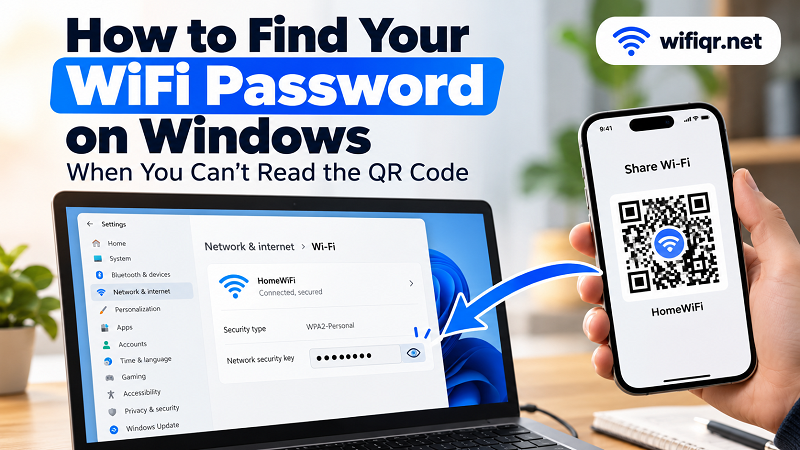
Start with the simplest option before opening a command window. On supported versions of Windows 11, you can find the password for a connected WiFi network in the system's network settings.
- Open Settings on your Windows computer.
- Select Network & internet, then open Wi-Fi.
- Look for the network's properties or the option to view the WiFi password. Depending on your Windows version and interface, you may find a Show button near the WiFi password field.
- If prompted, complete any required authentication and check the displayed password.
Windows 10 and different Windows 11 builds may organize these options differently. If you don't see a password field, don't waste ten minutes clicking every menu in sight. Move on to the next method.
Method 2: Use Command Prompt to Find a Saved WiFi Password
Command Prompt is a useful fallback when the Settings interface doesn't offer a straightforward way to view your password. It can list saved wireless network profiles and, when the credentials are available, display the stored security key.
Step 1: Open Command Prompt. Search for cmd in the Windows Start menu and open Command Prompt. Use an account with the permissions required to access the saved network information.
Step 2: List saved WiFi networks. Enter the following command and press Enter:
netsh wlan show profiles
Windows should return a list of wireless network profiles stored on the computer. Find the exact network name you want to check.
Step 3: Display the network's saved details. Replace NETWORK_NAME with the name of your WiFi profile, keeping the quotation marks if the name contains spaces:
netsh wlan show profile name="NETWORK_NAME" key=clear
Look through the output for Key Content under the security settings. If Windows has access to a saved password for that profile, the value may appear there. If the field is missing or blank, the password may not be available through this profile or your current permissions.
A quick security reminder: the command can expose your WiFi password in readable text. Don't run it on a computer you don't control, and avoid leaving the output visible where other people can see it.
What If the Password Is Only Available as a QR Code?
Sometimes your phone can connect to a network even though you don't know its password. That's because a WiFi QR code can contain the network name, security information, and password in a format that a compatible device can interpret automatically. Scanning it may connect another device without displaying the password as ordinary text.
If your Windows computer has never saved the network, try these alternatives:
- Check a device that already knows the password. Your phone, tablet, or another computer may offer a built-in option to view or share saved WiFi credentials.
- Ask the network owner. If the network belongs to a friend, workplace, hotel, or another organization, the owner can provide the correct credentials or an approved connection method.
- Check the router if you manage the network. The default WiFi details may be printed on its label, or you may be able to view or change them through the router's administration interface.
- Use the QR code directly when supported. If your laptop or an available companion device supports scanning WiFi QR codes, you may be able to connect without manually entering the password.
Be careful with third-party QR decoder websites. A WiFi QR code can contain sensitive access information, so uploading it to an unfamiliar service may expose credentials unnecessarily.
Why Your Saved WiFi Password May Not Appear
If neither Settings nor Command Prompt reveals the password, that doesn't automatically mean something is broken. Several situations can explain the missing information.
The computer has never joined the network. A phone's saved password isn't automatically stored on your laptop. Each device needs access to the credentials through a supported sharing or connection process.
You're checking the wrong profile. Similar network names can belong to different routers, guest networks, or frequency bands. Confirm the exact profile name before checking its saved details.
The saved profile no longer contains usable credentials. A network configuration may have been removed, reset, or changed since the computer last connected. You may need to reconnect using the current password.
Your account lacks the required permissions. Some network information may not be available to your current Windows account. Follow your organization's IT policies if you're using a managed work computer.
The key is to identify where the password is actually stored instead of repeatedly trying to extract it from a QR code that may not display readable text in the first place.
When You Only Need to Share WiFi Access
Here's a useful distinction: sometimes you don't need to know the password at all. You simply need another person or device to get online. In that situation, sharing a QR code can be much faster than reading a long password aloud, typing it into another device, or sending it through a message.
If you want a simple way to prepare a scannable code for your own network, wifi password show qr code is a relevant starting point. A WiFi QR code can make connecting more convenient, provided the receiving device supports the format and the code contains the correct network details.
Remember that convenience and security go together. Anyone who obtains a QR code containing your network credentials may be able to use it to connect. For visitors, consider setting up a separate guest network instead of sharing access to your primary network.
Keep Your WiFi Password Private
Once you've recovered the password, store it somewhere secure so you don't have to repeat the same detective work next week. A trusted password manager is a better choice than an unprotected text file sitting on your desktop. If you manage the router and believe the password has been exposed, consider changing it and updating the credentials on your connected devices.
For shared spaces, a guest network can help keep visitor access separate from personal computers, smart home devices, and other equipment. If you use a printed WiFi QR code, place it somewhere convenient for authorized guests without making it unnecessarily accessible to everyone passing by.
Frequently Asked Questions
Can I find a WiFi password on Windows without being connected?
Possibly. If Windows has a saved profile containing the network's credentials, you may be able to retrieve the password even when you're not currently connected. If the computer has never joined the network and has no saved credentials, you'll need another authorized source.
Can Command Prompt show a saved WiFi password?
Yes, it can display the saved security key for some WiFi profiles when the information is available and your account has sufficient permissions. The netsh wlan show profiles command lists saved profiles, while netsh wlan show profile name="NETWORK_NAME" key=clear displays the selected profile's details.
Why does my phone show a WiFi QR code but no password?
The QR code may be designed to let compatible devices connect automatically rather than display the password as readable text. Your phone's operating system, manufacturer, and software version determine whether a separate password-viewing option is available.
Can I use a WiFi QR code to connect a Windows laptop?
Yes, if the laptop or a compatible application supports reading WiFi QR codes. Otherwise, you may need to retrieve the saved password from another authorized device and enter it manually, or use another connection method provided by the network owner.