Employee Wi-Fi Access: A Better Onboarding Process
Make employee onboarding easier with a clear Wi-Fi access process. Learn how to organize network access, share credentials, and avoid common security mistakes.
A new employee can have their laptop ready, email account activated, and work schedule confirmed, yet still spend the first morning asking someone for the office Wi-Fi password. It sounds like a minor inconvenience, but these little delays add up. Worse, when every department handles network access differently, nobody is quite sure who should provide the credentials, which network to use, or what happens when an employee leaves.
- Wi-Fi Access Is More Than Just Giving Someone a Password
- The First-Day Wi-Fi Access Workflow
- One Office, Different Access Requirements
- Where a Wi-Fi QR Code Fits Into the Process
- The Shared Password Problem Nobody Should Ignore
- Make Wi-Fi Access Part of Your Onboarding Documentation
Wi-Fi access deserves a proper place in employee onboarding. It doesn't need to become a complicated IT project, either. A straightforward process can help new hires get connected quickly while giving the business better control over who accesses its network.
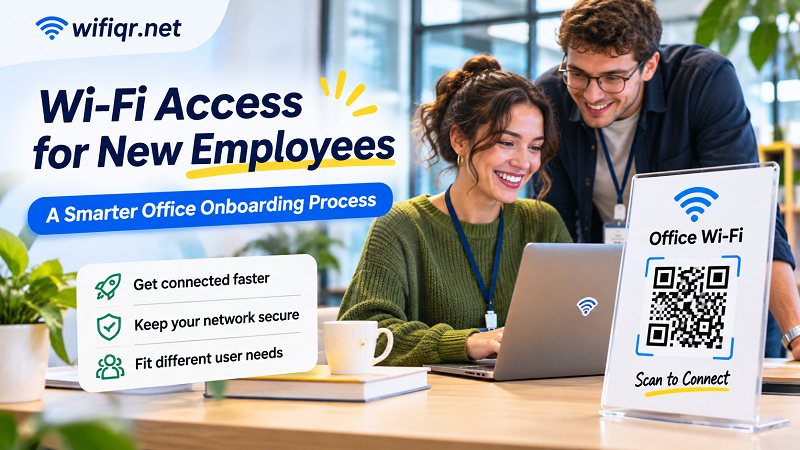
Wi-Fi Access Is More Than Just Giving Someone a Password
In a small office, sharing one Wi-Fi password with everyone might seem perfectly reasonable. The team is small, people know each other, and changing network settings feels like unnecessary work. That arrangement can function for a while, but it becomes harder to manage as the business grows.
Consider the different people who might walk through the office during a typical week: permanent employees, temporary workers, contractors, delivery partners, visiting clients, and business guests. They don't all need the same level of network access.
An employee may need access to internal applications, shared printers, file servers, or other company resources. A visitor probably just wants to check email or join a video call. Giving both groups access to the same network creates an avoidable security problem.
A better starting point is to establish separate access policies. Employees should use an authorized staff network, while visitors and other external users should connect through an appropriately isolated guest network. Depending on the business, temporary staff and contractors may also require restricted access.
The goal isn't to make connecting difficult. It's to make sure people get the access they actually need, rather than automatically opening the door to everything.
The First-Day Wi-Fi Access Workflow
Employee onboarding works best when access arrangements are prepared before someone arrives. Network credentials shouldn't be an afterthought that gets sorted out between meetings.
A practical workflow can follow four stages:
- Before the employee arrives: The responsible person confirms which devices the employee will use, what network access is required, and whether any additional permissions need approval. If the company has separate networks for staff and visitors, this is also the time to identify the correct one.
- On the first morning: The employee receives the necessary connection instructions. For a shared staff network, a printed Wi-Fi QR code can make the initial connection much faster. IT or the office manager should also explain any relevant network usage policies.
- During the first week: Check that the employee can access the resources required for their role. A successful Wi-Fi connection doesn't automatically mean that permissions for internal systems, printers, or business applications are configured correctly. These should be handled through their respective access management processes.
- When employment ends: Remove the employee's access to company systems and review their network permissions. If the business relies on a shared Wi-Fi password, determine whether it needs to be changed. Simply disabling an email account doesn't invalidate a password that someone already knows.
This workflow doesn't require an elaborate onboarding platform. Even a simple internal procedure with clearly assigned responsibilities can eliminate much of the confusion.
One Office, Different Access Requirements
Not everyone working inside an office should automatically receive identical network privileges. The appropriate setup depends on the person's responsibilities, the devices involved, and the sensitivity of company resources.
| User type | Recommended access approach |
|---|---|
| Full-time employees | Authorized staff network with role-appropriate permissions |
| Temporary staff | Restricted access based on assigned duties |
| Contractors | Approved access limited to required resources |
| Visitors | Isolated guest network with internet access |
This distinction becomes especially important when employees use personal phones or laptops alongside company-managed devices. A personal device may not meet the same security requirements as equipment controlled by the IT department.
For businesses with more advanced requirements, network segmentation through VLANs and suitable firewall policies can help separate different groups of users and devices. Larger organizations may also use individual authentication rather than relying on one shared password.
There's no universal setup that fits every office. A five-person agency doesn't need the same infrastructure as a company with several departments and hundreds of employees. What matters is choosing a system that matches the actual level of risk.
Where a Wi-Fi QR Code Fits Into the Process
Once the network structure is in place, the next challenge is making everyday access convenient. Nobody wants to type a long password full of uppercase letters, numbers, and special characters every time they connect a new device.
A Wi-Fi QR code solves that small but surprisingly annoying problem. Instead of manually entering network details, an employee can scan the code using a compatible smartphone camera and connect to the configured network.
Creating one is straightforward. First, confirm the exact network name (SSID), password, and security type. Even a small typo can prevent the code from working correctly. Then use a wifi qr maker to generate a QR code containing those connection details. Test it on several devices before distributing it to employees.
Placement matters, too. A code printed on an onboarding information sheet, displayed in an employee-only area, or included in an internal welcome guide is generally more practical than asking every new hire to search through old messages for a password.
There are a few details worth checking before rolling it out:
- Make sure the QR code points to the correct staff network, not the guest network.
- Test the code on both Android and iOS devices.
- Keep a readable network name and connection instructions nearby for devices that cannot scan Wi-Fi QR codes.
- Store printed copies where only authorized people can access them.
- Update the code whenever the underlying network credentials change.
One important distinction: a standard static Wi-Fi QR code contains connection information. It doesn't identify the person scanning it, assign individual permissions, or automatically expire when an employee leaves. Anyone who obtains a copy may be able to use the encoded credentials, provided the network still accepts them.
That's why QR codes work best as a convenience layer within an existing access policy, not as a replacement for network security.
The Shared Password Problem Nobody Should Ignore
Convenience is great until a shared password starts circulating beyond the people who were originally supposed to have it.
Employees may save credentials on personal phones, send them through messaging apps, or share a printed QR code with someone outside the organization. Over time, the business can lose track of who actually knows the password.
This becomes particularly awkward when someone leaves. If everyone uses the same credentials, removing one person's access may require changing the shared password and reconnecting multiple devices. That's manageable in a small office, but increasingly disruptive as the number of connected devices grows.
There are several ways to reduce this exposure:
- Keep employee and guest networks separate. Visitors should not need access to the same network used by company computers, printers, and internal services. An isolated guest network can provide internet access without exposing sensitive business resources.
- Review shared credentials periodically. If a business uses a shared password, establish a sensible process for reviewing and changing it when necessary. Avoid distributing updated credentials through uncontrolled channels.
- Consider individual authentication for larger teams. WPA2-Enterprise or WPA3-Enterprise, commonly implemented with 802.1X authentication, can associate access with individual user credentials rather than one password shared across the office. This makes it easier to revoke one person's access without forcing everyone else to reconnect.
- Control access to printed QR codes. A code that provides access to an internal network should be treated like a password, not like a general office decoration. Avoid displaying it in reception areas or other publicly accessible locations.
The right solution depends on how sensitive the network resources are and how many people need access. A QR code can make connection easier, but it cannot compensate for weak access controls.
Make Wi-Fi Access Part of Your Onboarding Documentation
A good onboarding document should answer practical questions before a new employee needs to ask them. Where should they connect? Who can help if the connection fails? Are personal devices allowed? What network rules should they follow?
Including this information in the employee welcome guide creates a consistent experience across departments. It also means the office manager, HR team, and IT administrator aren't repeatedly explaining the same basic details.
For a smaller business, the documentation might be just one page containing the staff network name, a QR code where appropriate, basic connection instructions, and an IT contact. A larger organization may need a more structured process with individual credentials, device registration, and automated access provisioning.
The key is to keep responsibilities clear. HR can coordinate the onboarding schedule, IT can manage technical permissions, and department managers can confirm which resources a new hire needs. Each team handles its part without relying on informal password sharing.
Employee onboarding should help people become productive, not send them on a scavenger hunt for an internet connection. When Wi-Fi access is planned alongside email accounts, work devices, and application permissions, the first day runs more smoothly. It's a small operational improvement, but one employees will appreciate immediately.