Accessible Wi-Fi QR Codes: A Guide for Everyone
Make Wi-Fi QR codes easier for everyone to use with clearer signs, manual connection options, practical accessibility checks, and a simple testing checklist.
A Wi-Fi QR code can look perfect, scan instantly, and still leave someone stuck. Maybe the sign does not explain what the code does. Maybe the instructions are difficult to read from a wheelchair or across a reception desk. Or maybe a visitor cannot scan QR codes at all and has no idea how to connect without asking a stranger for help.
- What Makes Wi-Fi Access Difficult for Some People?
- Design Wi-Fi QR Signs Around Real User Needs
- Tell People Exactly What the Code Does
- Make Supporting Information Easy to Read
- Keep the Sign Focused on One Main Action
- Build an Accessible Alternative to QR Scanning
- Provide a Manual Connection Option
- Make the Network Name Easy to Identify
- Offer Help Without Making People Feel Awkward
- Test Wi-Fi QR Codes With Different Users
- Test the Complete Connection Journey
- Observe Where People Get Stuck
- Keep a Record of Changes
- A Practical Accessibility Checklist for Wi-Fi QR Signs
- Create a Wi-Fi QR Code That Works With Your Signage
- Better Wi-Fi Access Starts With Better Design
That is the accessibility gap many businesses overlook. Making guest Wi-Fi accessible is not just about creating a code that works. It is about making the entire connection process understandable, practical, and usable for people with different needs, devices, and abilities.
Hotels, cafés, coworking spaces, libraries, clinics, and offices can all benefit from a more thoughtful approach. The goal is straightforward: help people get online without unnecessary confusion, awkward interactions, or avoidable barriers.
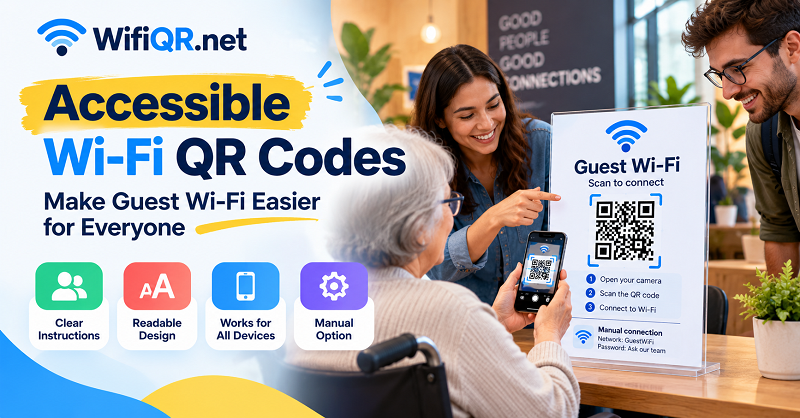
What Makes Wi-Fi Access Difficult for Some People?
Accessibility problems do not always come from complicated technology. Sometimes the obstacle is a small detail in the environment or the way information is presented.
A guest might have low vision and struggle to read a network name printed in tiny text. Someone with limited hand mobility may find it difficult to position a phone camera precisely. Another visitor might use a device that cannot scan the code or have accessibility settings that make the scanning process less convenient.
Language and familiarity also matter. A person who rarely uses QR codes may not know whether scanning one will connect them to Wi-Fi, open a website, or download something. A sign that says only “Scan Me” leaves too much room for guesswork.
The practical lesson is simple: do not assume that everyone approaches the sign with the same device, eyesight, experience, or level of confidence. Design the connection process so the next step is clear, and provide another way forward when scanning is not an option.
Design Wi-Fi QR Signs Around Real User Needs
An effective sign answers three questions before the visitor has to ask them: What is this? What should I do? What happens if it does not work?
Tell People Exactly What the Code Does
Use a direct heading such as “Connect to Guest Wi-Fi” rather than a vague instruction. If scanning the code opens a Wi-Fi connection prompt on compatible devices, explain that clearly. If it opens a webpage containing connection instructions, say so instead.
This small distinction helps people understand what to expect and makes the process feel less uncertain. It is especially useful in places where visitors encounter multiple codes for menus, payments, registration, feedback, and internet access.
Keep the message short, but do not sacrifice clarity for a clever slogan. The sign has a job to do, and clarity wins.
Make Supporting Information Easy to Read
The text surrounding the code is part of the experience, not decorative filler. Choose a readable typeface, use clear spacing, and maintain strong contrast between text and background. Avoid placing essential instructions over busy photographs or patterned designs.
Consider the viewing environment, too. A small card on a table is used differently from a wall-mounted sign in a hotel lobby. Visitors should be able to identify the sign and understand its instructions without needing to stand in an awkward position or move dangerously close to it.
Do not rely on color alone to communicate meaning. Pair visual cues with words, and keep the instructions understandable when viewed in ordinary lighting conditions.
Keep the Sign Focused on One Main Action
A sign crowded with several QR codes, promotional messages, social media links, and unrelated instructions forces visitors to make unnecessary decisions. Give Wi-Fi access a clear visual priority and move secondary information elsewhere when possible.
If the location genuinely needs multiple codes, label each one according to its purpose. “Guest Wi-Fi,” “View Menu,” and “Complete Feedback Form” are far more useful than a row of unlabeled squares.
Build an Accessible Alternative to QR Scanning
A QR code should make Wi-Fi access easier, not become the only possible route. Offering an alternative is one of the most practical ways to improve the experience.
Provide a Manual Connection Option
Display the network name, also known as the SSID, in readable text so visitors can select the correct network in their device settings. Where appropriate, provide the password through a suitable channel or let staff assist with the connection.
For a public venue, the sign might say:
Guest Wi-Fi
Scan the code to connect on a compatible device, or select the guest network in your Wi-Fi settings and ask our team for assistance if needed.
Adapt the wording to your actual setup. Do not promise automatic connection if the code merely opens a webpage, and do not print credentials that should remain restricted to authorized users.
Make the Network Name Easy to Identify
Network names can be confusing when a venue has several nearby routers or similar SSIDs. Use the exact network name displayed by the Wi-Fi system and make it easy to distinguish from unrelated networks.
If a venue offers separate guest and staff networks, label the guest option clearly. Visitors should never have to guess which network is intended for them.
Avoid publishing internal network credentials simply to make the sign more convenient. Accessibility and security should work together, not compete with each other.
Offer Help Without Making People Feel Awkward
Some visitors will need assistance, and that is completely normal. Staff should know how to explain the available connection methods, identify the correct guest network, and help someone connect without exposing information they should not access.
A short instruction such as “Need help connecting? Ask our front desk” gives people a clear next step. In a library or clinic, the appropriate contact might be a reception desk or designated support point.
The objective is to make help available without requiring visitors to explain a disability or disclose personal information.
Test Wi-Fi QR Codes With Different Users
Testing should cover more than whether a phone camera recognizes the code. A successful scan is only one part of a successful connection.
Test the Complete Connection Journey
Start from the visitor's perspective. Approach the sign as someone who has never used the venue's Wi-Fi before. Can you identify the correct code? Do the instructions explain what will happen? Can you connect without having to ask several questions?
Then test the actual technical process. Confirm that the encoded network details are correct, compatible devices behave as expected, and the connection succeeds under the venue's real network conditions. If the network uses a captive portal, additional authentication, or terms acceptance, check whether those steps are clearly explained.
Repeat the test after changing the sign, QR code, network configuration, or supporting instructions. A previously reliable process can become confusing after even a small operational change.
Observe Where People Get Stuck
When appropriate, ask a small group of willing users with different devices and levels of familiarity to try the process. You do not need to collect sensitive personal information or ask anyone to disclose a disability.
Observe practical questions instead:
- Can the person identify the purpose of the sign without additional explanation?
- Can they locate the network name and understand the alternative method?
- Do they know what to do if scanning fails?
- Can they complete the connection without unnecessary assistance?
- Are any steps confusing, physically awkward, or dependent on information that is difficult to read?
Record the obstacles and fix the recurring ones. If several people misunderstand the same instruction, rewriting it may be more effective than redesigning the entire sign.
Keep a Record of Changes
A simple maintenance note can prevent the same accessibility issue from returning. Record the date of a test, the problem observed, the change made, and whether the updated process worked.
This is especially useful for businesses with multiple signs or locations. Staff turnover, network changes, and replacement signage can gradually introduce inconsistencies if nobody owns the process.
A Practical Accessibility Checklist for Wi-Fi QR Signs
Before putting a sign into use, review the full experience rather than checking the QR pattern alone.
The sign clearly states that it provides guest Wi-Fi access.
Instructions explain what scanning will do.
Text is readable in the actual placement and lighting conditions.
Text and background have sufficient contrast.
Important information does not depend on color alone.
The QR code has enough clear space and scans reliably at its intended size.
The correct guest network is identified by its exact name.
A manual connection option is available where appropriate.
Visitors know where to get assistance if they cannot connect.
Staff understand the supported connection methods.
Network credentials are not exposed beyond what the venue intends.
The entire process has been tested on compatible devices.
The sign and instructions are reviewed after relevant network changes.
This checklist is a practical starting point, not a formal accessibility certification. The needs of a public library, a small café, and a large hotel may differ, so adapt the checks to the people and environment you serve.
Create a Wi-Fi QR Code That Works With Your Signage
Once the instructions and network setup are ready, generate the QR code that fits the experience you want to provide. A dedicated wifi qr code can make it easier for compatible devices to access the encoded Wi-Fi details without manually typing the network credentials.
Before printing, verify that the network name, security type, and password are correct. Test the finished code with compatible devices, then place it alongside the supporting instructions and manual connection option.
If you customize the design, keep scan reliability ahead of decoration. Preserve adequate contrast and clear space around the code, and test the exported design rather than assuming that a code will remain scannable after adding a logo or changing its colors.
Also consider what happens when the network password changes. A static Wi-Fi QR code contains the encoded connection details, so an update to those details may require generating and distributing a replacement code. Plan for that maintenance before producing large quantities of signs.
Better Wi-Fi Access Starts With Better Design
A good Wi-Fi QR code should remove friction, not create a new barrier. Clear instructions, readable signage, a reliable connection process, and a manual alternative can make guest internet access easier for a much wider range of people.
The strongest solution is not necessarily the most elaborate design. It is the one visitors can understand, use, and recover from when something goes wrong. Build the experience around real user needs, test it in the actual environment, and keep the process maintained as your network changes.
When accessibility is part of the design from the beginning, connecting to guest Wi-Fi becomes a simple task rather than another problem visitors have to solve.