Can Guests Access Your Smart Home Devices Through Wi-Fi?
Discover what guests can access on your home Wi-Fi, how guest network isolation works, and how to protect your smart home devices before sharing access.
Sharing your Wi-Fi password with a guest seems harmless enough. They need internet access, you give them the credentials, and everyone gets on with their day. But here's a question many homeowners never stop to consider: when someone joins your Wi-Fi, what else can they access besides the internet?
- What Can Someone Actually Access After Joining Your Wi-Fi?
- Your Internet Connection Is Only One Part of the Network
- Smart Devices Deserve More Attention Than You Think
- The Devices You Should Think About Before Sharing Access
- Main Wi-Fi vs. Guest Wi-Fi: Where Is the Boundary?
- What Guest Network Isolation Actually Does
- Why Some Routers Still Allow Communication Between Devices
- Guest Networks, Client Isolation, and VLANs Explained
- A Network Access Audit Before You Display Your QR Code
- Step 1: Identify the Devices Connected to Your Main Network
- Step 2: Check Whether Your Router Supports Guest Isolation
- Step 3: Verify Whether Guests Can Reach Local Devices
- Step 4: Test Your Smart Home Functions
- Step 5: Review Access After Changing Router Settings
- When Convenience and Device Compatibility Clash
- Where Does a Wi-Fi QR Code Fit Into This Setup?
- Choose the Right Network Before Generating Your QR Code
- The Final Network Access Checklist
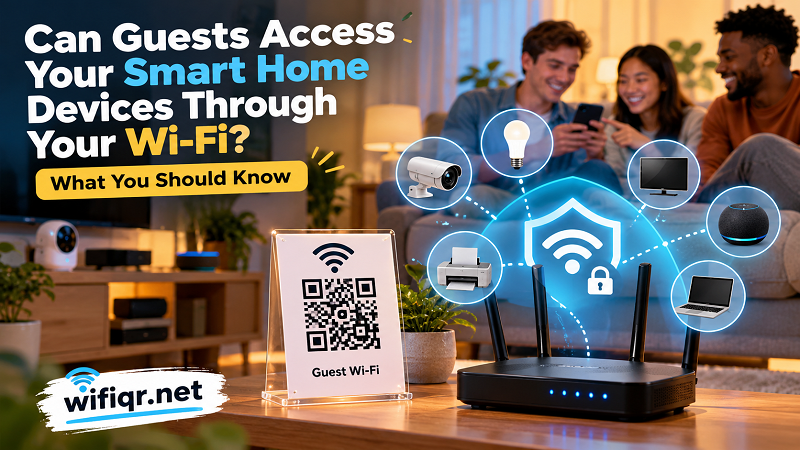
Your home network may connect far more than phones and laptops. Think security cameras, smart TVs, wireless speakers, printers, network storage, smart locks, and all those connected gadgets that quietly run in the background. They're part of the same digital environment, and depending on how your router is configured, a guest's device may be able to communicate with some of them.
This doesn't mean every visitor automatically gets access to your private files or smart home controls. Modern routers offer several ways to separate devices and restrict communication. However, assuming your network is private simply because it has a password is a risky shortcut. Before displaying a Wi-Fi QR code or handing out your credentials, it's worth understanding where that digital boundary actually sits.
What Can Someone Actually Access After Joining Your Wi-Fi?
A Wi-Fi connection gives a device a place on your network. What happens next depends on your router's security settings, network segmentation, device permissions, and the services running on connected equipment.
Internet access and local network access are two different things. A visitor might be able to browse websites without being able to communicate with your laptop, access your network storage, or discover your smart home devices. But on a poorly separated network, those boundaries may not exist.
Your Internet Connection Is Only One Part of the Network
Most people think of Wi-Fi as a wireless internet connection. In reality, your router often acts as the central meeting point for multiple devices inside your home.
Your phone might communicate with a smart speaker. A laptop could discover a wireless printer. A television might receive media from another device. A network-attached storage system could provide shared access to files across the household.
These connections happen locally, sometimes without sending data through the public internet. That's convenient when everything belongs to your household, but it introduces another consideration when unfamiliar devices join the same network.
If a guest can communicate with local devices, the extent of their access depends on those devices' own security controls. Simply joining the network does not automatically grant administrator privileges or unlock every connected device.
Smart Devices Deserve More Attention Than You Think
Smart home equipment often receives less attention than computers when people think about cybersecurity. That's a mistake.
Consider a few common examples:
- Security cameras: Some cameras expose local management interfaces or video streams, depending on their configuration and security controls.
- Smart TVs: Certain models support local media sharing, device discovery, or remote-control features.
- Wireless printers: A printer may advertise itself to other devices on the same network, potentially exposing printing services.
- NAS devices: Network storage can contain personal documents, backups, photographs, and other sensitive information.
- Smart speakers and home hubs: These devices may communicate with other equipment to support automation and media playback.
The important distinction is between network visibility and actual access. A device appearing in a network discovery list doesn't mean someone can control it. Nevertheless, unnecessary exposure creates more opportunities for misconfiguration or exploitation.
The Devices You Should Think About Before Sharing Access
Rather than treating every connected gadget as equally sensitive, look at your network through the lens of what each device can reveal or control.
| Device category | Potential concern | What to review |
|---|---|---|
| Security cameras | Private video feeds and management interfaces | Account protection and network isolation |
| Smart locks | Physical access and automation controls | Authentication and remote access settings |
| NAS and computers | Personal files and shared folders | File-sharing permissions and firewall rules |
| Smart TVs | Media services and local device discovery | Remote-control and sharing settings |
| Wireless printers | Unwanted print jobs and service exposure | Network visibility and access restrictions |
| Smart speakers | Local control and connected services | Pairing and device permissions |
This isn't a list of devices that guests can automatically compromise. It's a practical inventory of the equipment worth protecting.
For example, a smart television may have little sensitive information stored locally, while a NAS could contain years of personal photographs and important documents. Both deserve appropriate security, but the potential consequences of unwanted access are very different.
A useful rule: the more personal information or physical control a device holds, the more carefully you should manage its network exposure.
Main Wi-Fi vs. Guest Wi-Fi: Where Is the Boundary?
Guest Wi-Fi exists for a simple reason: visitors shouldn't need to share the same network environment as the devices you use every day.
Most modern routers support a separate guest network. Depending on the model, this network can provide internet connectivity while restricting access to your primary local network.
However, the word "guest" on a Wi-Fi network name doesn't guarantee isolation. The actual security depends on how the router implements the feature and which settings are enabled.
What Guest Network Isolation Actually Does
A properly configured guest network can separate visitors from your main household network. Guests may still access the internet, but communication with private devices can be restricted.
Some routers also offer client isolation, which prevents devices connected to the same wireless network from communicating directly with one another.
These are related but different protections:
- Guest network isolation: Separates guest devices from the main home network.
- Client isolation: Restricts communication between individual clients on the same network.
- Firewall rules: Control which types of network traffic are allowed between devices or network segments.
- VLAN segmentation: Creates logically separated network environments with rules governing communication between them.
Not every consumer router supports all these features. Some offer a simple guest-network toggle, while advanced models provide more detailed controls.
Why Some Routers Still Allow Communication Between Devices
Router manufacturers don't all implement guest networking in the same way. A guest network might isolate visitors from your primary LAN but still allow communication among guest devices.
Other configurations may expose selected local services to guests or provide options that weaken isolation.
There is also a difference between separating wireless clients and separating entire network segments. A setting that prevents two guest phones from communicating doesn't necessarily tell you everything about how the router handles traffic between the guest and main networks.
This is why checking the actual configuration matters more than relying on a feature name.
Guest Networks, Client Isolation, and VLANs Explained
Here's a quick comparison of the three approaches:
| Feature | Main purpose | Typical use |
|---|---|---|
| Guest network | Separate visitors from the primary network | Friends, family, customers |
| Client isolation | Prevent connected clients from communicating directly | Public or shared Wi-Fi |
| VLAN segmentation | Separate network environments with configurable traffic rules | Advanced home networks and businesses |
For most households, a properly configured guest network is a sensible starting point. VLANs offer more control, but they also require more networking knowledge and careful firewall configuration.
You don't need an enterprise-grade network to protect your home. You do need to understand what your existing equipment actually does.
A Network Access Audit Before You Display Your QR Code
Before sharing your Wi-Fi credentials, perform a quick network access audit. Think of it as checking the doors and windows of your digital home before handing someone a visitor pass.
You don't need expensive security software or a networking certification. A few checks in your router's administration interface can reveal whether your current setup is doing what you expect.
Step 1: Identify the Devices Connected to Your Main Network
Start by opening your router's administration page or mobile app. Look for sections labeled Connected Devices, Device List, Network Map, or something similar.
Review the equipment currently connected to your primary Wi-Fi. Pay attention to devices that store sensitive information or control physical equipment.
If you find an unfamiliar device, don't immediately assume someone has broken into your network. Device names can be misleading, and some routers display manufacturer names instead of recognizable product names.
Identify your own equipment first. This gives you a useful baseline for future monitoring.
Step 2: Check Whether Your Router Supports Guest Isolation
Find the Guest Network settings and inspect the available options.
Look for controls such as:
- Allow guests to access local network.
- Access intranet.
- Guest network isolation.
- Block access to private network.
- Allow communication between guest devices.
The exact wording varies between manufacturers. Some routers use a checkbox to enable isolation, while others enable it automatically when the guest network is created.
If you're unsure what a setting does, consult the router manufacturer's documentation rather than changing advanced options blindly.
Step 3: Verify Whether Guests Can Reach Local Devices
A guest network should be tested, not simply trusted.
Connect a separate phone or laptop to the guest Wi-Fi. Confirm that it can access the internet, then check whether it can discover or communicate with devices on your main network.
For a basic household check, you can inspect whether your main-network printer, shared storage, or other local services are visible from the guest device.
Keep in mind that device discovery and successful access are not the same thing. A device might appear in a discovery tool but still reject connections because of its own authentication or firewall settings.
For more advanced testing, use the diagnostic tools recommended by your router manufacturer or a qualified network administrator. Avoid scanning devices or networks you don't own or have permission to test.
Step 4: Test Your Smart Home Functions
Network isolation can sometimes interfere with features that rely on local communication.
For example, your phone may need to communicate directly with a smart speaker, television, or home automation hub. Moving devices to separate networks can affect discovery, casting, or local control.
Test the functions your household actually uses after changing network settings. The goal is to reduce unnecessary access without breaking essential smart home features.
Step 5: Review Access After Changing Router Settings
Network security isn't a one-time setup task.
Router firmware updates, new devices, configuration changes, and factory resets can all affect your network environment. Review your settings whenever you make significant changes.
It's also sensible to remove unknown or obsolete devices from your network and update the passwords used by important connected equipment.
A few minutes of periodic maintenance can prevent a small configuration mistake from becoming a much bigger headache.
When Convenience and Device Compatibility Clash
Here's where things get interesting: stronger network separation isn't always the most convenient option.
Imagine putting your smart TV on your primary network and your phone on a guest network. You might discover that wireless casting no longer works as expected.
Or perhaps your wireless printer is connected to the main network, but a laptop on the guest network cannot find it. That's not necessarily a malfunction. The router may be doing exactly what it was configured to do.
Common compatibility issues include:
Wireless casting: Technologies such as Chromecast-style casting and other local discovery systems may rely on communication between devices. Network separation can interrupt that communication.
Printer discovery: Many printers use local discovery protocols. If a router blocks communication between network segments, the printer might disappear from the device list.
Smart home control: Some automation systems rely on local connections between phones, hubs, and connected devices. Separating these components without planning can affect functionality.
Media sharing: Local media servers and shared storage may become inaccessible when devices are placed on isolated networks.
The solution isn't to disable every security feature just to make everything work. Instead, decide which devices genuinely need to communicate and configure access accordingly.
For advanced setups, carefully controlled firewall rules or VLAN configurations can allow specific services while keeping other devices separated. If your router doesn't support these options, consider keeping sensitive equipment on your main network and giving visitors internet-only access through a guest network.
Where Does a Wi-Fi QR Code Fit Into This Setup?
A Wi-Fi QR code makes sharing network credentials dramatically easier. Guests scan the code with a compatible smartphone, and the device can use the encoded information to join the wireless network without manually typing a password.
But there's one important detail: a QR code does not create network security boundaries. Your router does.
If your QR code contains the credentials for your primary home network, scanning it connects visitors to that network. If it contains the credentials for an isolated guest network, visitors connect to that environment instead.
The QR code itself doesn't determine which devices guests can access, whether local communication is blocked, or how your firewall handles traffic.
Choose the Right Network Before Generating Your QR Code
Before creating a code for your home, decide which network you actually want to share.
For everyday visitors, a dedicated guest network is often the better option. It provides a convenient way to offer internet access without automatically placing unfamiliar devices alongside your personal computers, storage systems, and smart home equipment.
Once you've configured the appropriate network, you can use a qr code to wifi password tool to encode its SSID, security type, and password into a scannable code.
You can then print the code, display it in a convenient location, or share it digitally with visitors.
One final detail worth remembering: if you change the guest network password, an existing static QR code containing the old credentials won't update itself. You'll need to generate and distribute a replacement.
The Final Network Access Checklist
Before making your Wi-Fi QR code available to guests, run through this quick checklist:
| Security check | What you're looking for |
|---|---|
| Main network reviewed | You know which devices are connected |
| Guest network enabled | Visitors have a separate connection option |
| Network isolation checked | Guests cannot unnecessarily access private devices |
| Client isolation reviewed | Guest devices have appropriate communication restrictions |
| Important devices protected | Cameras, NAS, computers, and smart locks have proper security |
| Compatibility tested | Essential smart home features still work |
| QR code verified | It contains the correct guest network credentials |
| Router maintained | Firmware and security settings are up to date |
You don't need to turn your home into a high-security data center. You simply need to know what you're sharing and where the boundaries are.
A Wi-Fi QR code should make life easier for everyone, not create unnecessary exposure for your home network. Set up the right guest connection, verify its restrictions, and then share access with confidence.
Convenience and security aren't enemies. With a little planning, you can have both.